Release Notes - Beta v0.7.2
Summary
This release introduces improved meeting platform connection management, automated email application processing, and a powerful candidate import feature. Users now receive clear warnings when their preferred meeting platform is not connected, with quick access to establish connections. A new Gmail integration allows automatic candidate detection from email applications. Additionally, the Apply Job dropdown now includes an Import Candidates function for quickly adding existing candidates to job postings with automatic scoring.
What's New
- Meeting platform connection warning with quick connect button
- Automated email application detection and processing via Gmail
- Automatic CV download from email attachments
- Application source configuration in job creation form
- Apply Job dropdown with Apply With Resume and Import Candidates options
- Import Candidates modal with pagination, search, and multi-selection
- Automatic candidate scoring when importing to job postings
Meeting Platform Connection Warning
Clear Guidance for Unconnected Platforms
When selecting a meeting platform (Google Meet, Microsoft Teams, or Zoom) that is not yet connected to Composio, the system now displays a clear warning message with a direct connect button, ensuring users can quickly establish the necessary connection.
Features:
- Visual Warning Alert: Orange warning banner displayed below the selected platform
- Clear Messaging: Explicit text stating the platform is not connected
- Quick Connect Button: Direct link to initiate platform connection via Composio
- Platform-Specific: Warning shown only for the unconnected selected platform
- Seamless Flow: Users can connect without leaving the settings page
How It Works:
1. Navigate to Settings > Interview > Meeting
2. Select a meeting platform (Google Meet, Microsoft Teams, or Zoom)
3. If the platform is not connected, a warning message appears
4. Click the "Connect" button to establish the connection via Composio
5. Complete the OAuth authentication flow
6. Return to continue with meeting configuration
Warning Message:
> "[Platform Name] is not connected. Please connect your account to use this platform."
Benefits:
- Clear visibility of connection status
- Reduced confusion when generating meeting links
- Quick resolution path for unconnected platforms
- Prevents failed meeting link generation attempts
- Improved user experience during interview scheduling
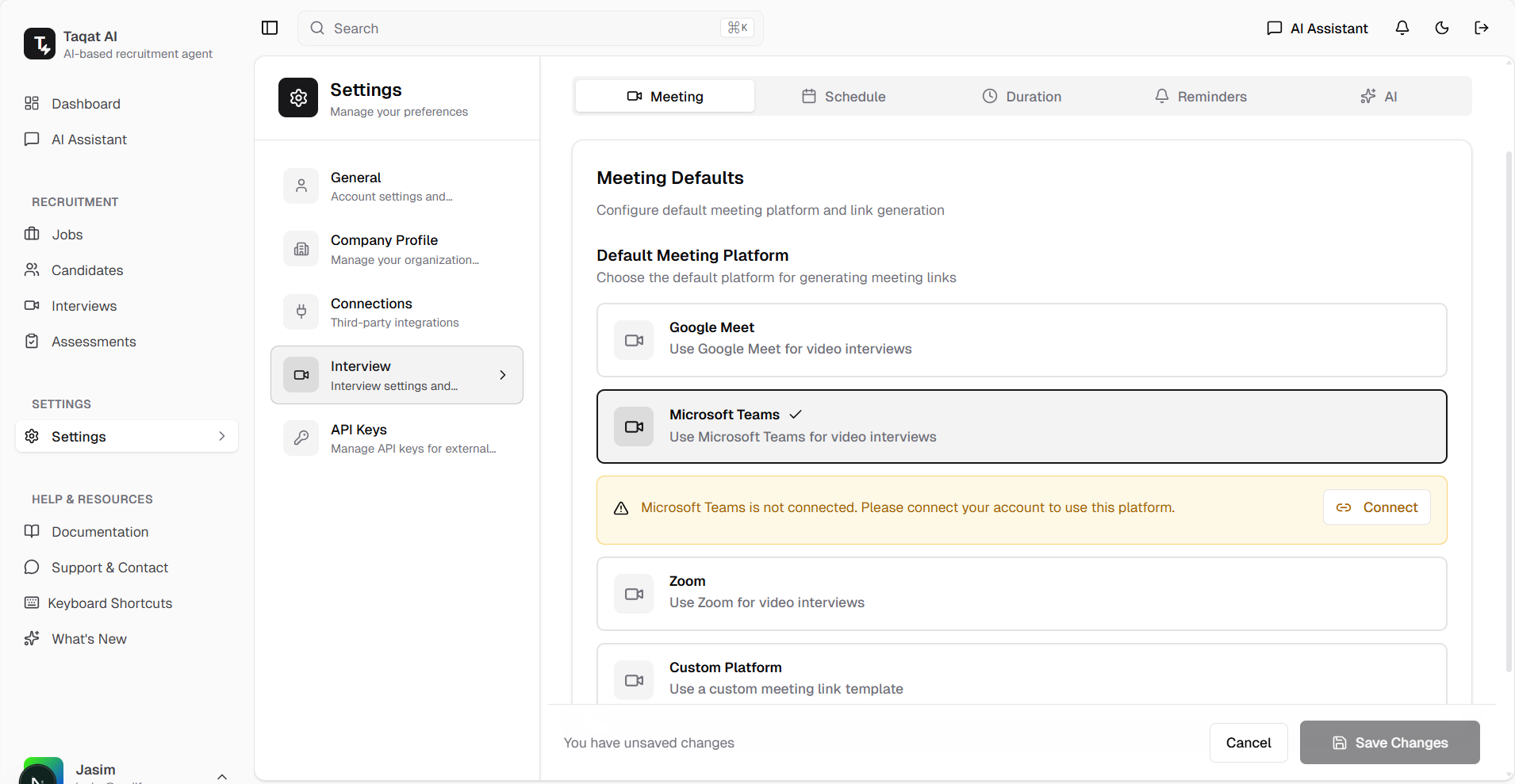
Warning message displayed when Microsoft Teams is selected but not connected, with Connect button
Automated Email Application Processing
Collect Candidates Directly from Gmail
Enable Gmail as an application source to automatically detect and process candidate applications received via email. The system intelligently identifies application emails, downloads attached CVs, and creates candidate records automatically.
Features:
- Application Source Selection: Enable Gmail in job creation form
- Smart Email Detection: AI identifies emails that are job applications
- Automatic CV Download: Extracts and downloads CV attachments from emails
- Candidate Auto-Creation: Creates candidate records with extracted information
- Job Assignment: Automatically links candidates to the relevant job posting
- Multiple Source Support: LinkedIn and Twitter integrations coming soon
How It Works:
1. Create or edit a job posting
2. Navigate to the "Application Sources" section
3. Enable the "Gmail" toggle to collect candidates from email
4. Publish the job
5. When candidates send applications via email with CV attachments:
- System detects the application email
- AI verifies it's a valid job application
- CV is automatically downloaded and parsed
- Candidate profile is created with extracted information
- Candidate is added to the job's applicant pool
Application Sources Available:
- Gmail: Collect and manage candidates directly from Gmail (Available)
- LinkedIn: Collect and manage candidates directly from LinkedIn (Coming Soon)
- Twitter: Collect and manage candidates directly from Twitter (Coming Soon)
Benefits:
- Zero manual candidate entry for email applications
- Automatic CV processing and storage
- Reduced time-to-hire with instant candidate creation
- Unified candidate pipeline from multiple sources
- No email applications lost or overlooked
- Streamlined recruitment workflow

Application Sources section in job creation form with Gmail toggle option
Apply Job Dropdown with Import Candidates
Streamlined Candidate Application Management
The job details page now features an enhanced "Apply Job" dropdown menu with two powerful options: Apply With Resume for new candidates and Import Candidates for adding existing candidates from your database to the job posting.
Features:
- Apply Job Dropdown: Clean dropdown menu on job details page
- Apply With Resume: Traditional resume upload for new candidates
- Import Candidates: Add existing candidates from your database to the job
- Quick Access: Both options accessible from a single button
- Seamless Integration: Works directly from the job details page
Dropdown Options:
- Apply With Resume: Opens resume upload form for new candidate applications
- Import Candidates: Opens modal to select existing candidates from your database

Apply Job dropdown showing Apply With Resume and Import Candidates options
Import Candidates Modal
Bulk Import Existing Candidates to Job Postings
The Import Candidates feature allows recruiters to quickly add existing candidates from their database to a job posting. The modal provides comprehensive candidate selection with pagination, search functionality, and flexible selection options.
Features:
- Candidate List View: Displays all candidates with name, avatar, and summary
- Pagination: 10 candidates per page for easy navigation
- Page Navigation: Previous/Next buttons with page number display
- Total Count: Shows total candidates available for import
- Selection Counter: Displays number of currently selected candidates
Selection Options:
Single Selection:
- Click the checkbox next to any candidate to select them individually
- Click the "Select" button next to a candidate for quick single selection
- Selected candidates show a checked checkbox
- Selection count updates in real-time
Multi-Selection:
- Select All Button: Selects all candidates on the current page
- Cross-Page Selection: Navigate to next page and click Select All to add those candidates to existing selection
- Cumulative Selection: Selections persist across pages - candidates selected on page 1 remain selected when viewing page 2
- Flexible Management: Mix individual selections with Select All across multiple pages
How It Works:
1. Click "Apply Job" dropdown on job details page
2. Select "Import Candidates" option
3. Browse candidates in the paginated list
4. Select candidates using:
- Individual checkbox clicks for specific candidates
- "Select" button for quick single selection
- "Select All" button to select all candidates on current page
5. Navigate between pages to select more candidates (selections persist)
6. View selection count to confirm your selections
7. Click "Add to Hiring" button to import selected candidates
Pagination Details:
- 10 candidates displayed per page
- Previous/Next navigation buttons
- Direct page number selection (1, 2, 3, 4, 5, 6...)
- Total candidate count displayed at bottom
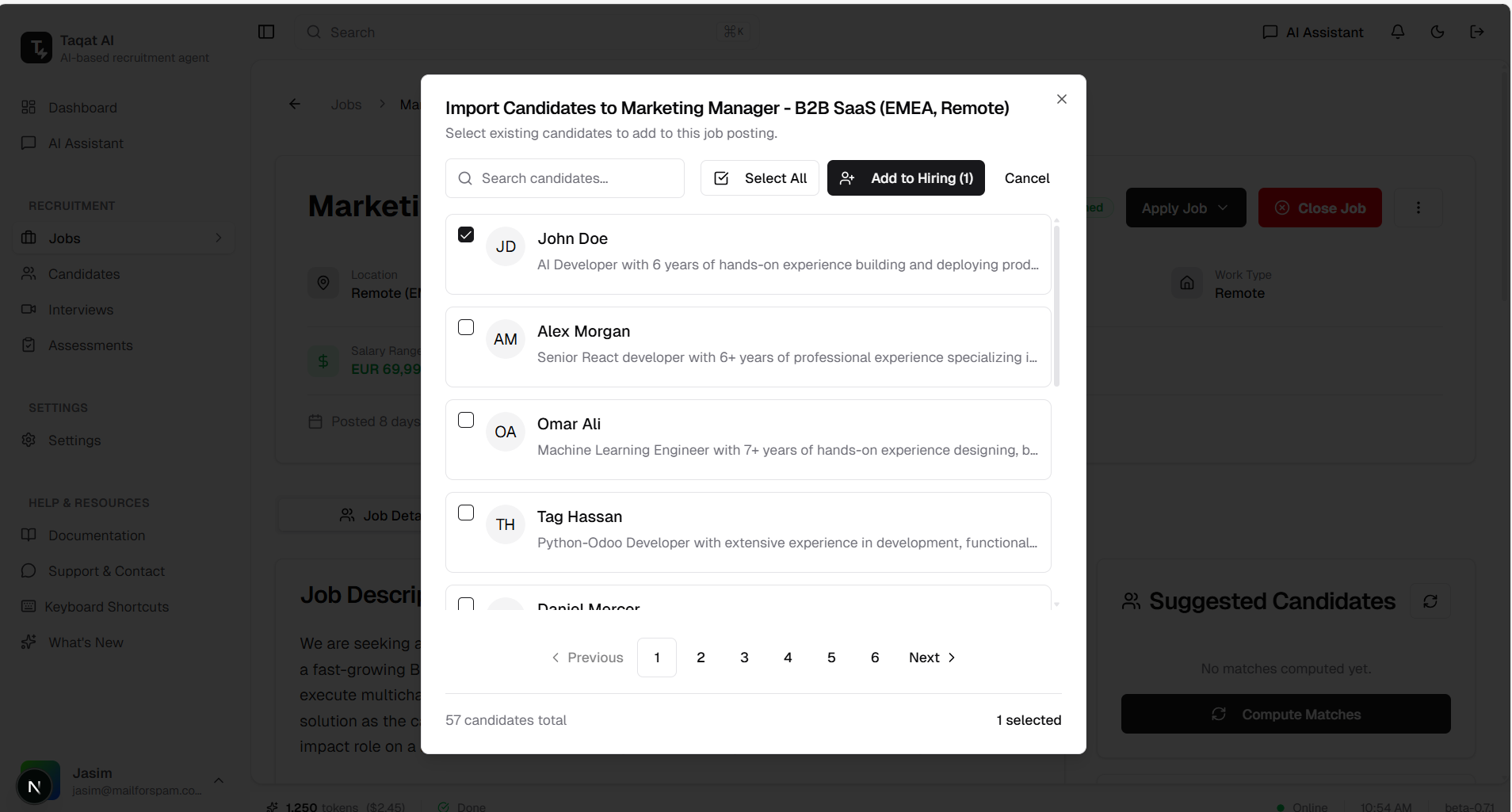
Import Candidates modal with single candidate selected (John Doe) - showing 1 selected
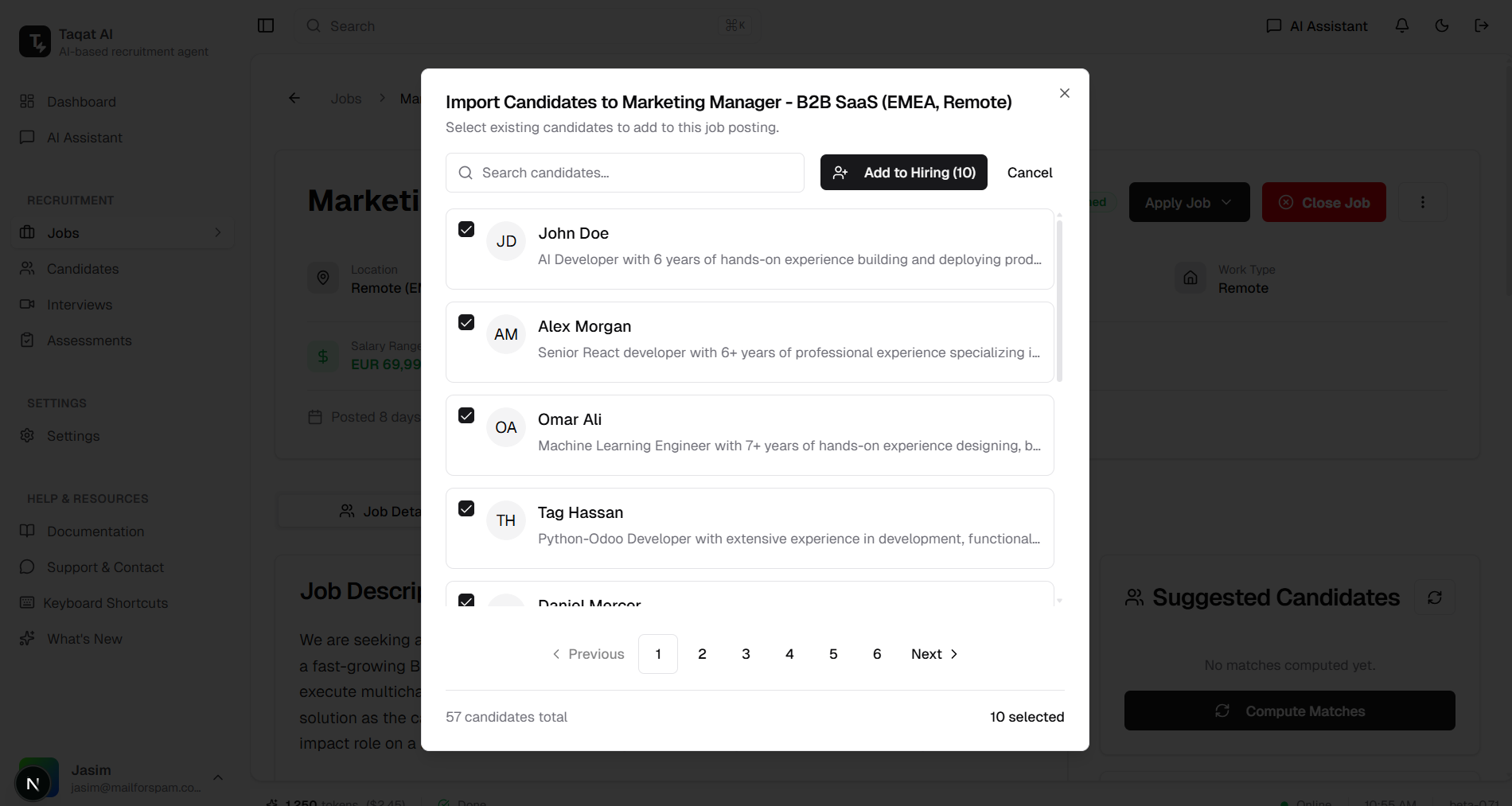
Import Candidates modal with Select All applied - showing 10 selected candidates on current page
Candidate Search in Import Modal
Find Candidates Quickly by Name
The Import Candidates modal includes a powerful search feature that allows recruiters to quickly find specific candidates by name, making it easy to locate and import the right candidates.
Features:
- Search Input: Text field at the top of the modal
- Real-Time Filtering: Results update as you type
- Name-Based Search: Search by candidate first or last name
- Clear Button: Quick clear (×) to reset search
- Result Count: Shows matching candidates count
- Select Button: Quick selection for search results
How It Works:
1. Open Import Candidates modal
2. Type candidate name in the search field
3. Results filter instantly to show matching candidates
4. Click checkbox or "Select" button to select the candidate
5. Clear search to return to full list or continue searching
Benefits:
- Instant candidate lookup
- No scrolling through long lists
- Efficient candidate selection
- Works alongside pagination and multi-selection
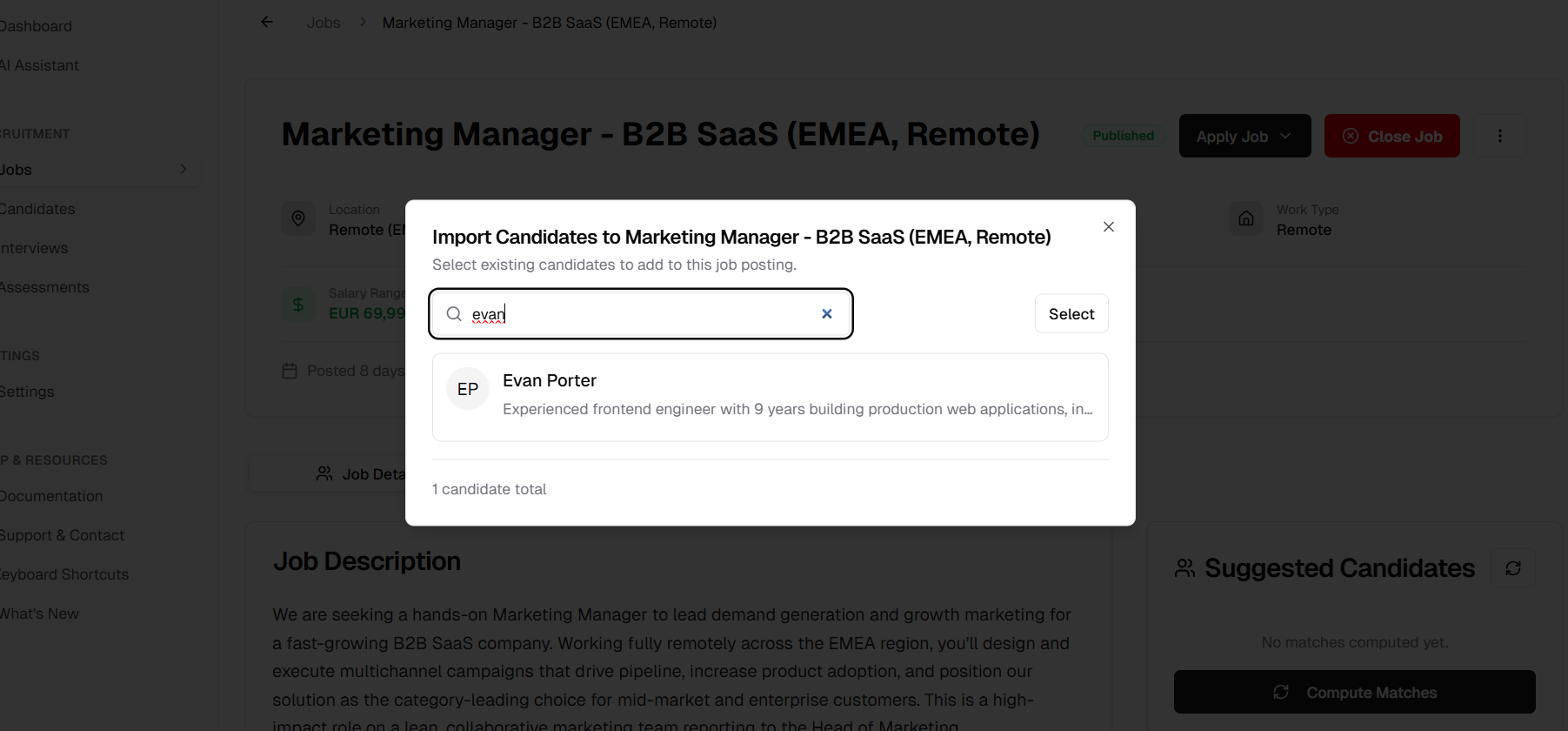
Search field filtering candidates by name "evan" showing matching result
Automatic Candidate Scoring on Import
AI-Powered Scoring When Adding Candidates to Jobs
When candidates are imported to a job posting via the "Add to Hiring" button, the system automatically processes them in the background: adding them to the recruitment workflow with "Shortlisted" status and calculating their match score against the specific job requirements.
Features:
- Add to Hiring Button: Appears when candidates are selected
- Dynamic Button Text: Shows count of selected candidates (e.g., "Add to Hiring (10)")
- Shortlisted Status: Imported candidates automatically enter workflow as "Shortlisted"
- Background Processing: Scoring happens asynchronously without blocking the UI
- Job-Specific Scoring: AI calculates match score based on job requirements
- Score Display: Candidate scores visible in job application view
How It Works:
1. Select one or more candidates in the Import Candidates modal
2. "Add to Hiring" button appears with selection count
3. Click "Add to Hiring" to import candidates
4. System processes in background:
- Candidates added to job with "Shortlisted" status
- AI analyzes candidate profile against job requirements
- Match score calculated and saved
5. View imported candidates with scores in the job's Candidates tab
Workflow Status:
- Imported candidates start with Shortlisted/Awaiting Assessment status
- Ready for immediate review and progression through hiring stages
- No manual status assignment required
Benefits:
- Immediate candidate scoring for imported candidates
- Consistent evaluation criteria across all candidates
- Streamlined workflow with automatic status assignment
- Time savings on manual candidate evaluation
- Data-driven hiring decisions from the start
Bug Fixes
Fixed Double Scroll Bar in Chat UI
Resolved an issue where double scroll bars would appear in the chat interface, improving the overall user experience and visual consistency.
Fixed Candidate Search for Full Names
Improved the candidate search functionality to support searching by full name. Previously, searching for "John Doe" would return no results because the search only checked first name and last name separately. Now users can search using the complete name and get accurate results.
- Search "John" → matches candidates with first name "John"
- Search "Doe" → matches candidates with last name "Doe"
- Search "John Doe" → matches candidates with full name "John Doe"
Released on December 09, 2025
View all releases