Release Notes - Beta v0.6.1
Summary
This release introduces a complete user registration and company onboarding flow with email verification. New users can now register with their name and password confirmation, verify their email via OTP, and set up their company profile before accessing the platform. Additionally, the interview list has been improved with a clearer interviewer display.
What's New
- Enhanced registration form with Name and Confirm Password fields
- Email verification via OTP (One-Time Password)
- Company onboarding page for new users after email verification
- Automatic verification check for existing unverified users
- Stronger password validation with current password verification in Settings
- Renamed "Panelist" column to "Interviewer" with avatar and email display
Enhanced Registration Form
Complete User Registration Experience
The registration form now includes additional fields for a more complete sign-up experience.
Features:
- Name Field: Enter your full name during registration
- Confirm Password: Password confirmation to prevent typos
- Streamlined Layout: Clean, intuitive form design
- Validation: All fields are required with proper validation
How It Works:
1. Navigate to the registration page
2. Enter your name in the Name field
3. Provide your email address
4. Create a password (minimum 6 characters)
5. Confirm your password
6. Click "Create account" to proceed
Benefits:
- Better user identification with name
- Reduced password entry errors
- Professional onboarding experience
- Clear terms of service and privacy policy links
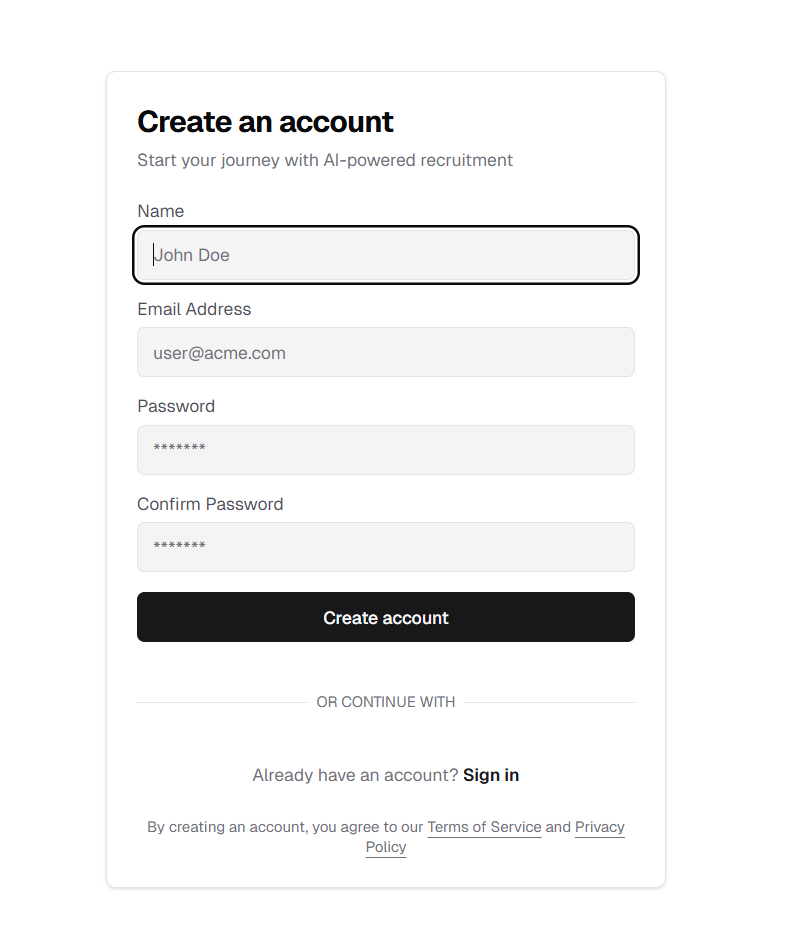
Updated registration form with Name and Confirm Password fields
Email Verification (OTP)
Secure Email Verification System
After registration, users must verify their email address using a 6-digit verification code sent to their inbox.
Features:
- 6-Digit OTP: Secure verification code sent via email
- Clear Instructions: Shows which email the code was sent to
- Resend Option: Resend code if not received
- Go Back Option: Return to registration if wrong email entered
- User-Friendly Input: Split input boxes for easy code entry
How It Works:
1. Complete the registration form
2. Check your email for the verification code
3. Enter the 6-digit code in the verification page
4. Click "Verify OTP" to confirm
5. If code not received, click "Resend" to get a new code
6. If wrong email, click "Go back" to correct it
Benefits:
- Ensures valid email addresses
- Prevents unauthorized account creation
- Secure verification process
- Easy recovery options
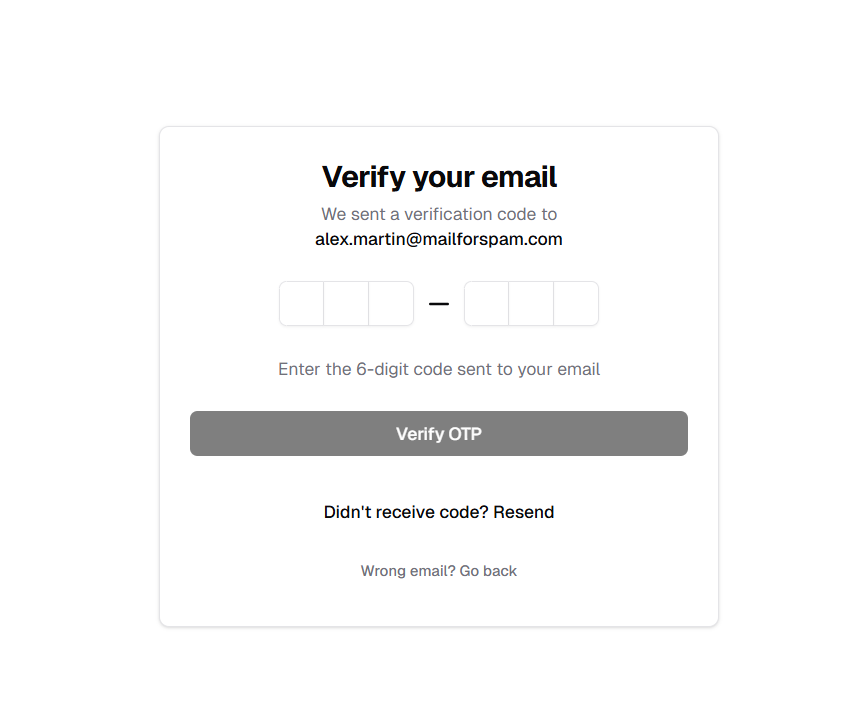
OTP verification page for email confirmation
Company Onboarding
Complete Company Profile Setup
After email verification, new users are redirected to the company onboarding page to set up their organization profile.
Features:
- Company Name: Required field displayed across the platform
- Company Size: Select from predefined employee ranges (e.g., 11-50 employees)
- Industry: Choose your company's primary industry (e.g., Technology)
- Website: Enter your company's website URL
- Company Logo: Upload your logo (JPG, PNG, or WebP, max 2MB)
How It Works:
1. After OTP verification, you're redirected to company setup
2. Enter your company name (required)
3. Select company size from the dropdown
4. Choose your industry
5. Enter your company website URL
6. Upload your company logo (optional)
7. Click "Complete Setup & Continue" to finish
Benefits:
- Professional company profile
- Brand identity with logo
- Complete organization information
- Seamless transition to main platform
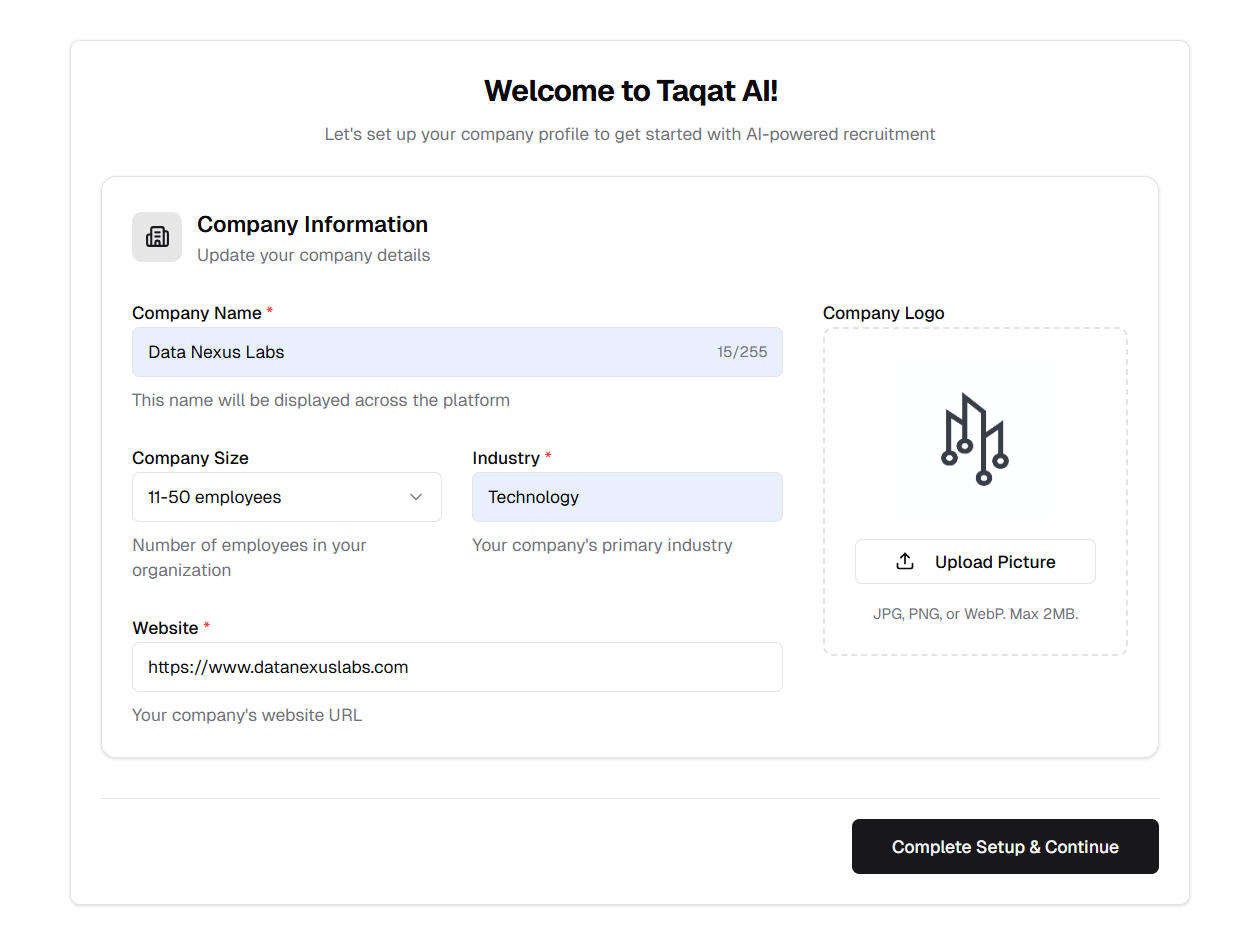
Company onboarding page for setting up organization profile
Existing User Verification
Automatic Verification Check for Returning Users
For existing users who haven't completed email verification, the system automatically checks their verification status and prompts for verification if needed.
Features:
- Automatic Status Check: System checks if user is verified on login
- OTP Resend: Unverified users receive a new verification code
- Seamless Flow: Redirects to verification page automatically
- No Manual Intervention: Process is fully automated
How It Works:
1. Existing user attempts to log in
2. System checks verification status
3. If unverified, OTP is automatically sent to their email
4. User is redirected to verification page
5. After verification, user can access the platform
Benefits:
- Ensures all users have verified emails
- Seamless experience for returning users
- Automated verification process
- Enhanced security
Enhanced Password Security
Stronger Password Validation Rules
Password security has been improved with comprehensive validation rules applied to both the registration form and the Settings/Profile change password section.
Features:
- Current Password Verification: Must enter current password to change password (Settings only)
- Minimum 8 Characters: Passwords must be at least 8 characters long
- Uppercase Letter Required: At least one uppercase letter (A-Z)
- Lowercase Letter Required: At least one lowercase letter (a-z)
- Number Required: At least one numeric digit (0-9)
- Special Character Required: At least one special character (e.g., !@#$%^&*)
- Security Note: After updating password, users must sign in again on all devices
How It Works:
1. Navigate to Settings > Profile to change your password
2. Enter your current password for verification
3. Create a new password meeting all requirements
4. Confirm the new password
5. Click "Save Changes" to update
Benefits:
- Enhanced account security
- Protection against weak passwords
- Consistent validation across registration and profile settings
- Clear feedback on password requirements
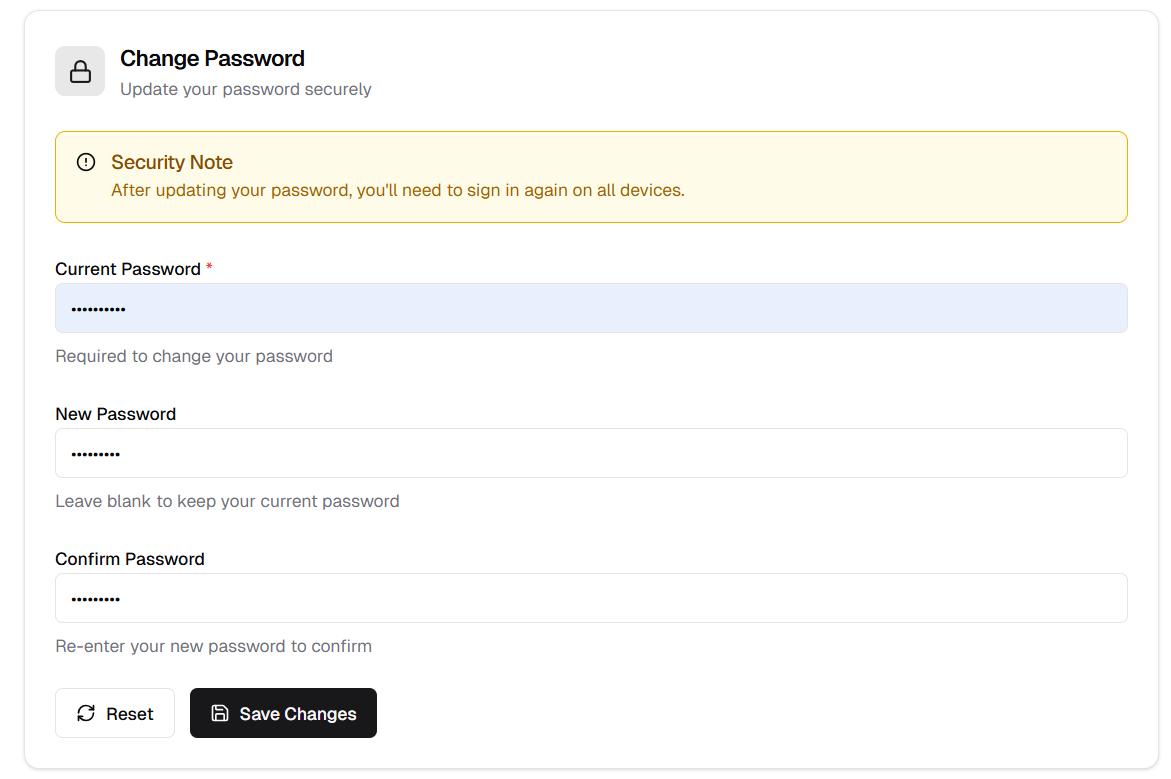
Change password section in Settings/Profile with current password validation
UI Improvements
Interviewer Column in Interview List
Clearer Interviewer Display
The "Panelist" column in the interview list has been renamed to "Interviewer" with an improved display showing avatar and email.
Features:
- Renamed Column: "Panelist" is now "Interviewer" for clarity
- Avatar Display: Shows interviewer's avatar/initial
- Email Display: Shows interviewer's email address
- Truncated Email: Long emails are truncated for clean display
Benefits:
- Clearer terminology
- Better visual identification
- Consistent with interview scheduling workflow
- Improved readability
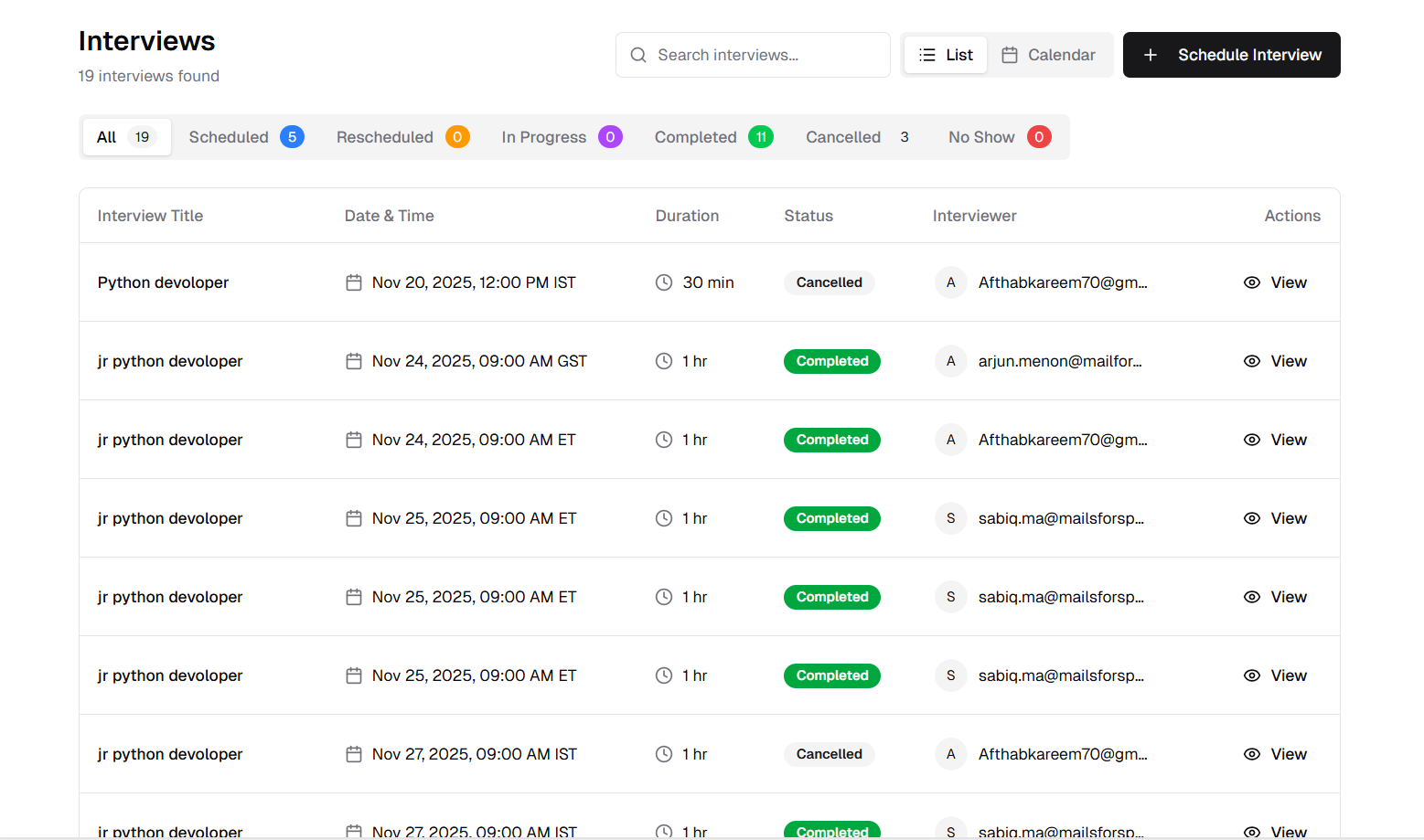
Interview list with updated Interviewer column showing avatar and email
Bug Fixes
Latest Release Badge Display
Fixed Incorrect Badge Display on All Release Notes
Previously, the "Latest Release" badge was incorrectly displayed on all release notes instead of only the most recent one.
What Was Fixed:
- Badge Logic: Corrected the version comparison to properly identify the latest release
- Accurate Display: "Latest Release" badge now only appears on the most recently released version
- Consistent Behavior: All older release notes no longer show the latest badge
Benefits:
- Accurate version identification
- Clear distinction between current and previous releases
- Improved user experience when browsing release history
Released on November 26, 2025
View all releases