Release Notes - Beta v0.5
Summary
This release includes a redesigned UI with updated navigation, sidebar panel, and chat interface. It adds an AI-powered assessment system for candidate evaluation. You can create custom assessments with different question types, generate questions using AI, evaluate responses automatically, and add assessments to your recruitment workflow.
What's New
- Redesigned UI with enhanced navigation and sidebar panel
- Improved AI chat interface with panel view
- Complete assessment management system with AI-powered question generation
- Multiple question types: text, single choice, and multiple choice
- AI-powered automatic assessment evaluation and scoring
- Assessment configuration in job creation workflow
- Public assessment interface for candidates
- Automated email notifications for assessment invitations
- Manual assessment assignment for selected applicants
- Assessment results tracking in candidate profiles
- Enhanced job applicants list with quick action menu
✨ What's New
🎨 Redesigned User Interface
Enhanced Navigation and Modern Layout
A complete UI overhaul that improves navigation, usability, and overall user experience throughout the platform.
Key Improvements:
Enhanced Sidebar Navigation:
- Organized Sections: Clear grouping of features into Dashboard, AI Assistant, Recruitment, Settings, and Help & Resources
- Settings Section: Easy access to application settings and preferences
- Help & Resources: Quick access to Documentation, Support & Contact, Keyboard Shortcuts, and What's New
- Cleaner Layout: Better visual hierarchy and spacing
AI Assistant Panel View:
- Dockable Panel: AI Assistant now available as a right-side panel
- Split View: Work with AI while viewing main content
- Panel Controls: Minimize, maximize, and close options
- Quick Toggle: Open/close AI Assistant without leaving your current page
- Header Integration: AI Assistant button in top navigation bar
- Persistent Context: Maintains conversation while navigating
Search Functionality:
- Keyboard Shortcut: Quick access with ⌘K (Mac) or Ctrl+K (Windows)
- Instant Results: Real-time search as you type
Visual Improvements:
- Notification Bell: Clear notifications indicator
- User Profile: Quick access to account settings and logout
- Status Indicators: Online status and version display (v3.1.0)
- Token Usage Display: Real-time token consumption tracking
- Cleaner Chat Area: Improved message input with attachment options
Navigation Structure:
Before:
- Simple sidebar with New Chat, Jobs, and Candidates
- Chat history displayed in sidebar
- Limited organization
After:
- Dashboard overview
- AI Assistant with dedicated panel
- Local AI server option
- Organized recruitment section
- Settings and help sections
- Better visual grouping
How It Works:
1. Access AI Assistant: Click "AI Assistant" in header to open panel
2. Navigate Sections: Use organized sidebar menu
3. Global Search: Press ⌘K/Ctrl+K to search anywhere
4. Theme Toggle: Click dark mode icon in header
5. Panel Management: Resize, minimize, or close AI panel as needed
Benefits:
- Improved navigation efficiency
- Better feature discoverability
- Enhanced multitasking with panel view
- Modern, professional appearance
- Consistent user experience
- Faster access to key features
- Better workspace organization
- Reduced context switching
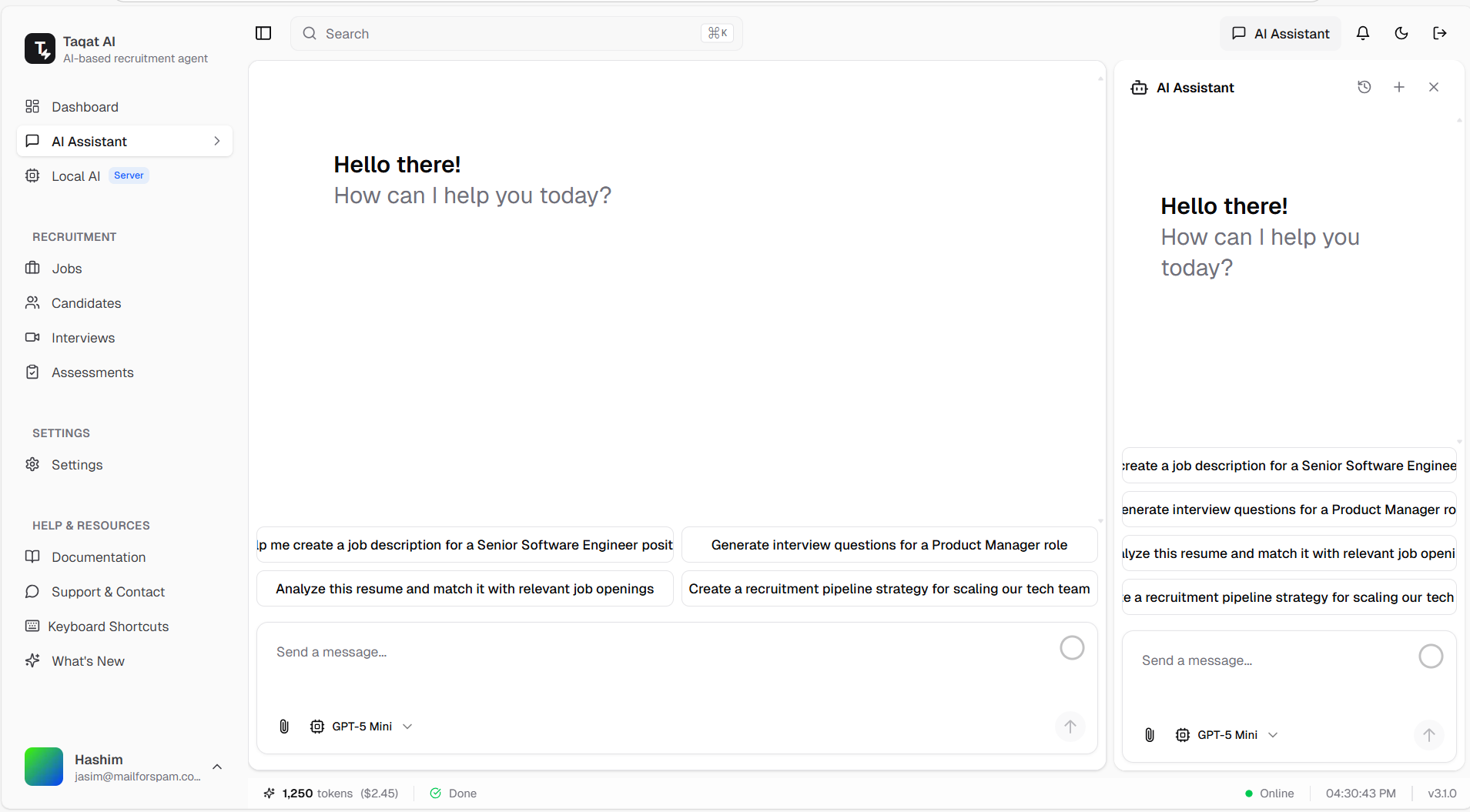
Redesigned interface with enhanced navigation, sidebar organization, and AI Assistant panel view
📋 Assessment Question Library
Comprehensive Question Management
Browse, filter, and manage all your assessment questions in one centralized location.
Features:
- Question Library: View all assessment questions across all assessments
- Advanced Filters:
- -Filter by category (Technical, Behavioral, Cognitive, Skills, Mixed)
- -Filter by difficulty level (Entry Level, Intermediate, Advanced, Expert)
- -Filter by question type (Text, Single Choice, Multiple Choice)
- Quick Actions: Delete, edit, and manage questions efficiently
- Expected Answers: View correct answers for each question at a glance
Benefits:
- Centralized question management
- Easy question discovery and reuse
- Quality control through answer preview
- Efficient question organization
- Better assessment consistency
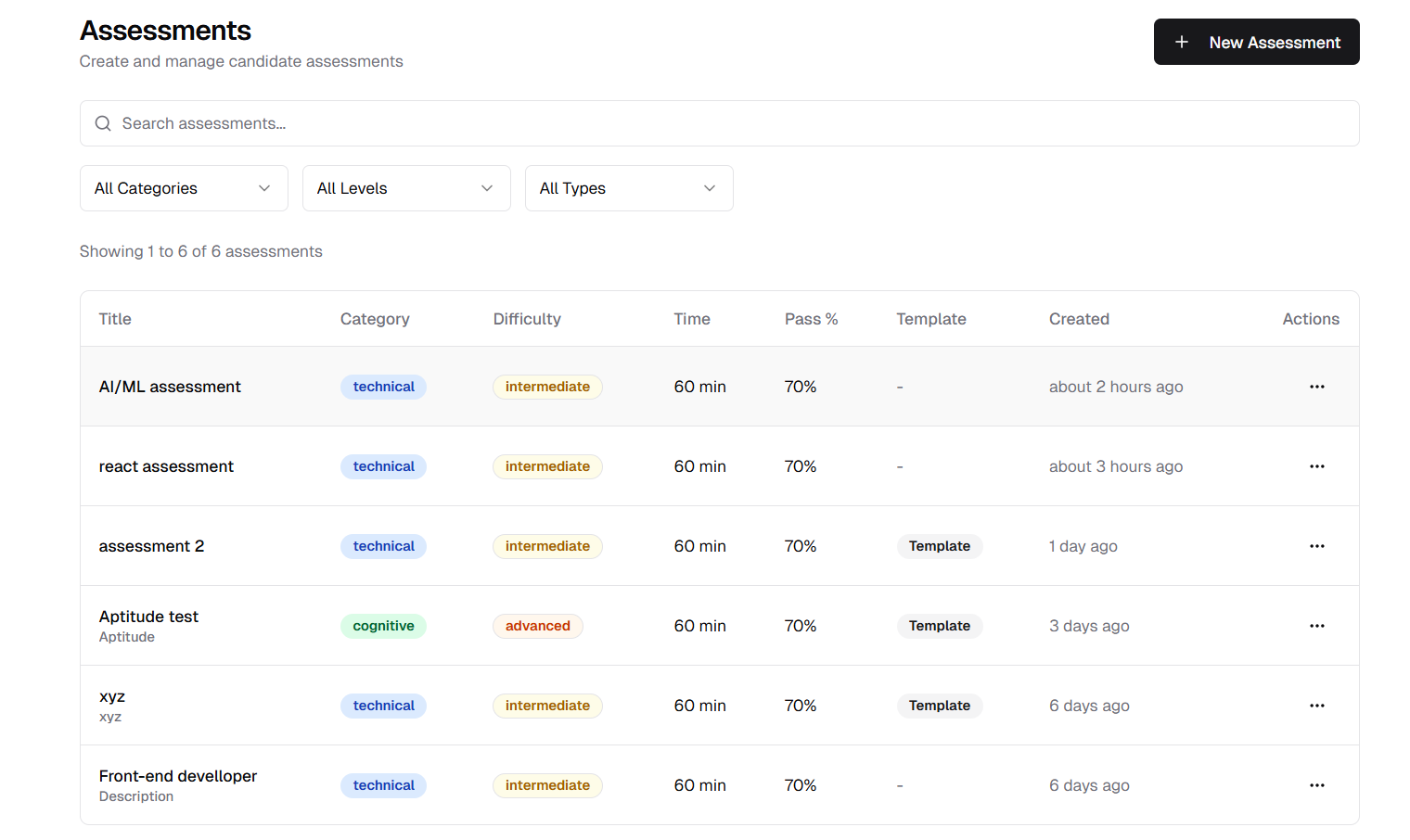
Comprehensive question library with powerful filtering options
✍️ Create Custom Assessments
Flexible Assessment Builder
Design tailored assessments that match your specific hiring needs.
Features:
- Basic Information:
- -Title (required)
- -Description (optional)
- -Category selection (Technical, Behavioral, Cognitive, Skills, Mixed)
- -Difficulty level (Entry Level, Intermediate [default], Advanced, Expert)
- Assessment Configuration:
- -Time limit (5-240 minutes)
- -Pass threshold (0-100%)
- -Save as template option for future reuse
- Smart Defaults: Pre-configured settings for quick creation
- Template System: Save frequently used assessment configurations
How It Works:
1. Click "Create New Assessment"
2. Enter title and optional description
3. Select category from dropdown
4. Choose difficulty level (defaults to Intermediate)
5. Set time limit and pass threshold
6. Enable "Save as Template" for reusable assessments
7. Click create to start adding questions
Benefits:
- Customized assessments for each role
- Reusable templates save time
- Flexible configuration options
- Clear success criteria with pass threshold
- Time-controlled assessments
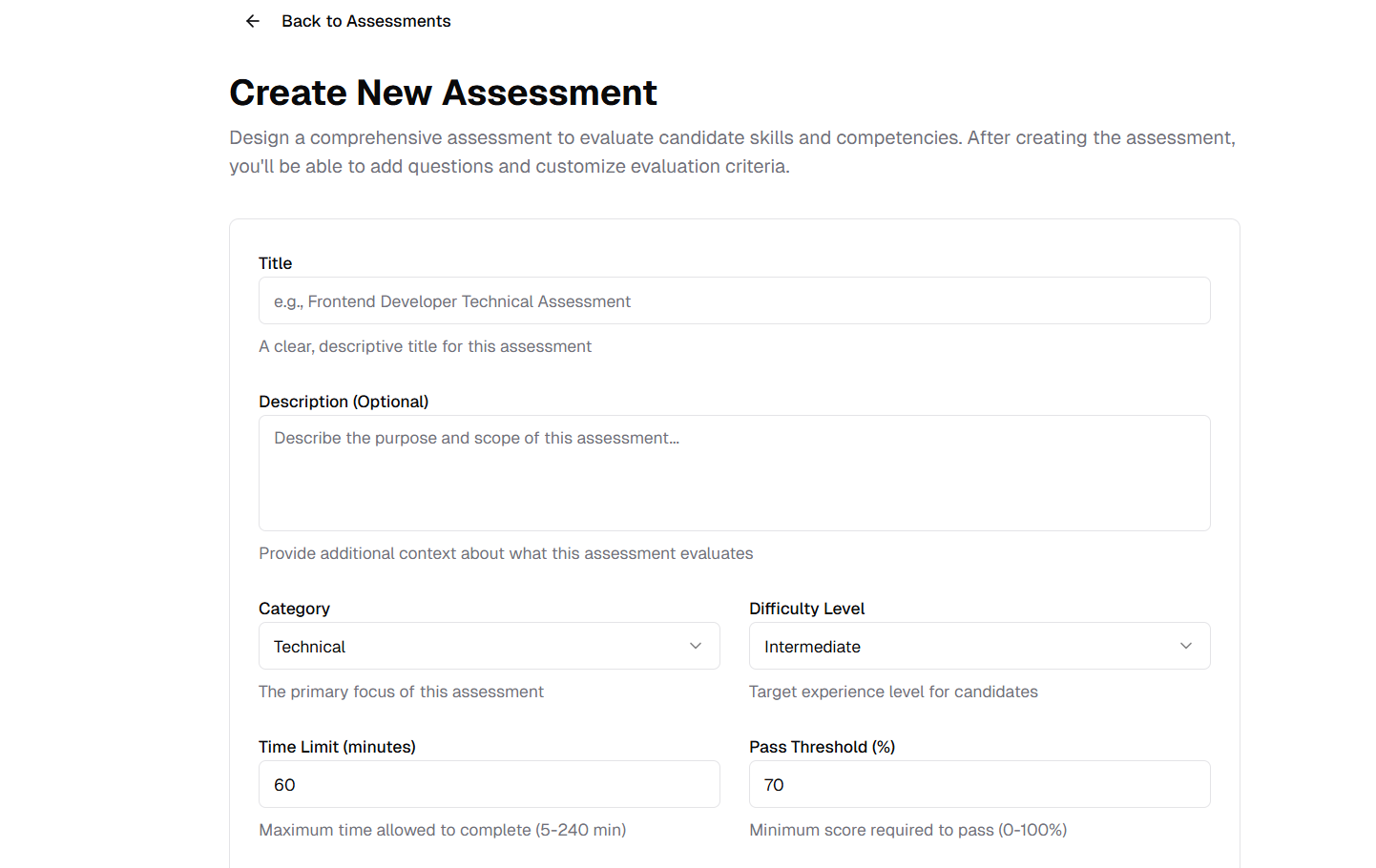
Create custom assessments with flexible configuration options
➕ Add Questions Manually
Traditional Question Creation
Build your assessment question by question with full control over content.
Question Types:
- Text Questions: Open-ended responses for detailed answers
- Single Choice: One correct answer from multiple options
- Multiple Choice: Multiple correct answers possible
Features:
- Question Details: Question text, Optional description for context, Question type selection
- Answer Options: Add multiple options for choice-based questions
- Expected Answers: Define correct answers for automated grading
- Rich Formatting: Support for detailed question descriptions
How It Works:
- 1. From assessment editor, click "Add Question"
- 2. Enter question text
- 3. Add optional description
- 4. Select question type
- 5. For choice questions:
- -Add answer options
- -Mark correct answers
- 6. Save question to assessment
Benefits:
- Complete control over question content
- Mix different question types
- Clear expected answers
- Contextual descriptions
- Precise assessment design
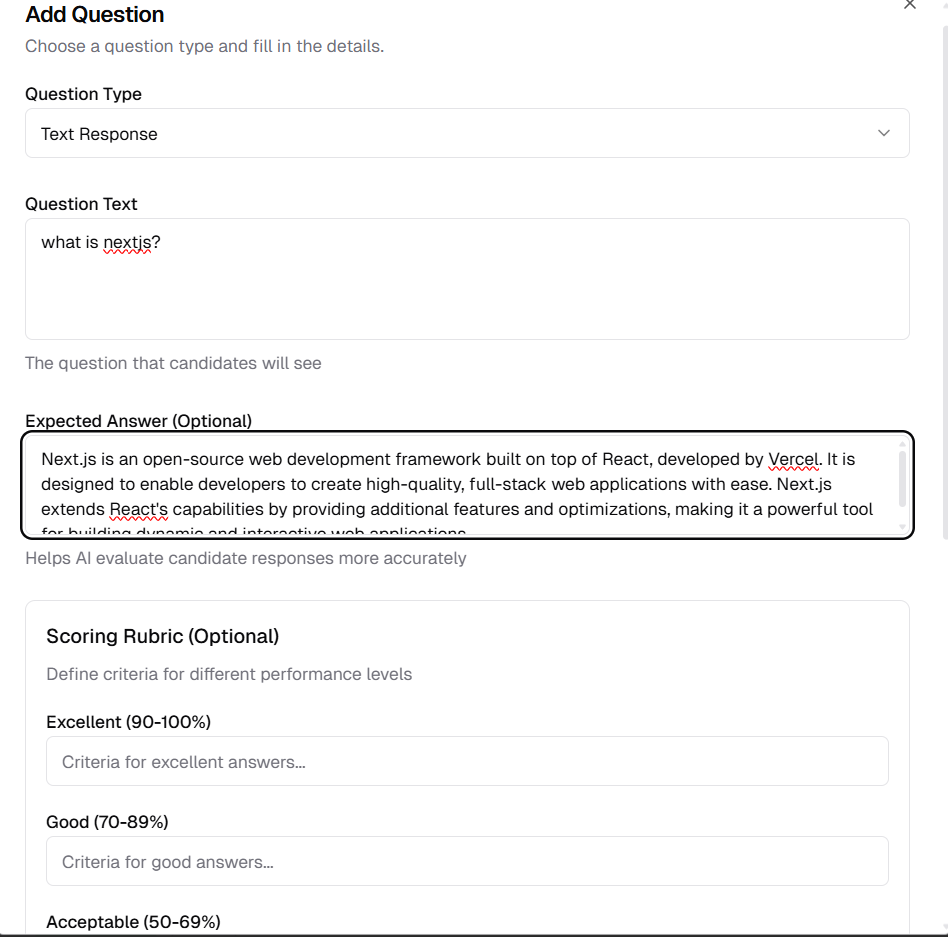
Manual question creation with support for text and choice-based questions
🤖 AI-Powered Question Generation
Smart Question Creation
Let AI generate relevant, high-quality assessment questions tailored to your requirements.
Features:
- AI Generation: Create multiple questions instantly
- Question Count Selection: Choose how many questions to generate
- Type Selection: Specify question types (text, single choice, multiple choice, or mixed)
- Context-Aware: AI considers assessment category and difficulty
- Batch Creation: Generate multiple questions at once
How It Works:
1. Click "Generate with AI" in assessment editor
2. Specify number of questions needed
3. Select question types to generate
4. AI creates questions based on assessment context
5. Review generated questions
6. Select questions to import
Benefits:
- Rapid assessment creation
- Consistent quality questions
- Reduced manual effort
- Professional question formatting
- Diverse question variety
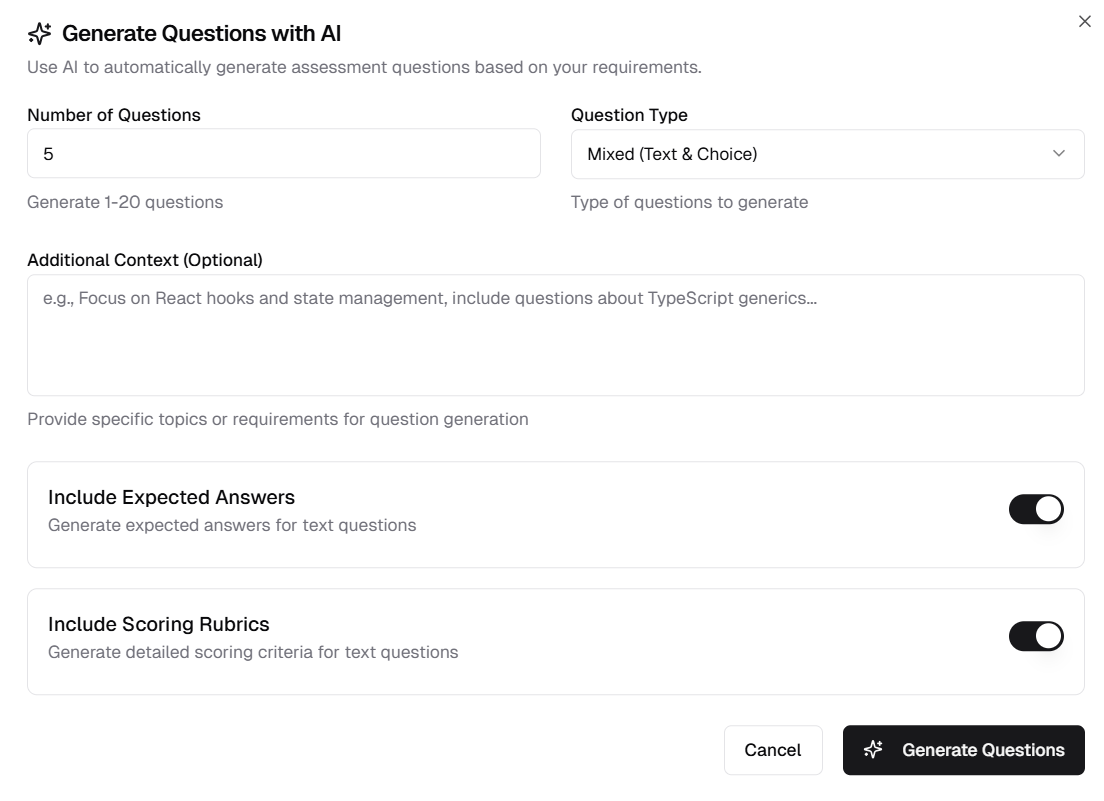
AI-powered question generation with customizable parameters
✅ Review and Import AI-Generated Questions
Selective Question Import
Review AI-generated questions and choose which ones to add to your assessment.
Features:
- Question Preview: View all generated questions before importing
- Selective Import: Check/uncheck individual questions
- Bulk Selection: Select all or deselect all with one click
- Answer Preview: See expected answers for each question
- Quality Control: Review before adding to maintain standards
How It Works:
1. AI generates questions based on your criteria
2. Review list displays all generated questions
3. Check boxes next to questions you want to keep
4. Uncheck questions you want to exclude
5. Click "Import Selected Questions"
6. Selected questions added to assessment
Benefits:
- Quality control over AI-generated content
- Flexibility to curate questions
- Preview before committing
- Maintain assessment standards
- Mix AI and manual questions
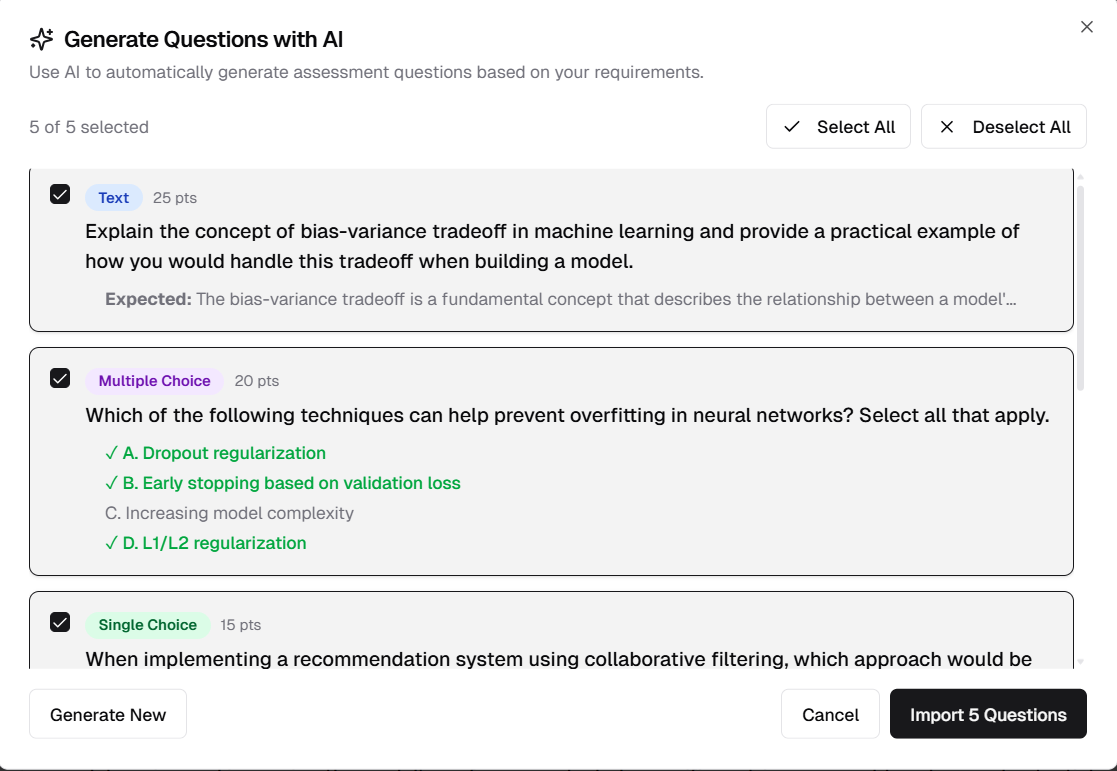
Review and select AI-generated questions before importing
📝 Assessment Question Management
Complete Question List View
Manage all questions within an assessment with full visibility of content and answers.
Features:
- Question List: View all questions in current assessment
- Expected Answers: See correct answers for each question
- Quick Actions:
- -Generate more questions with AI
- -Add questions manually
- -Delete individual questions
- Question Details: Full question text and answer options visible
- Reorder Questions: Organize questions in desired sequence
Benefits:
- Complete assessment overview
- Easy question management
- Mix manual and AI questions
- Maintain question quality
- Flexible assessment editing
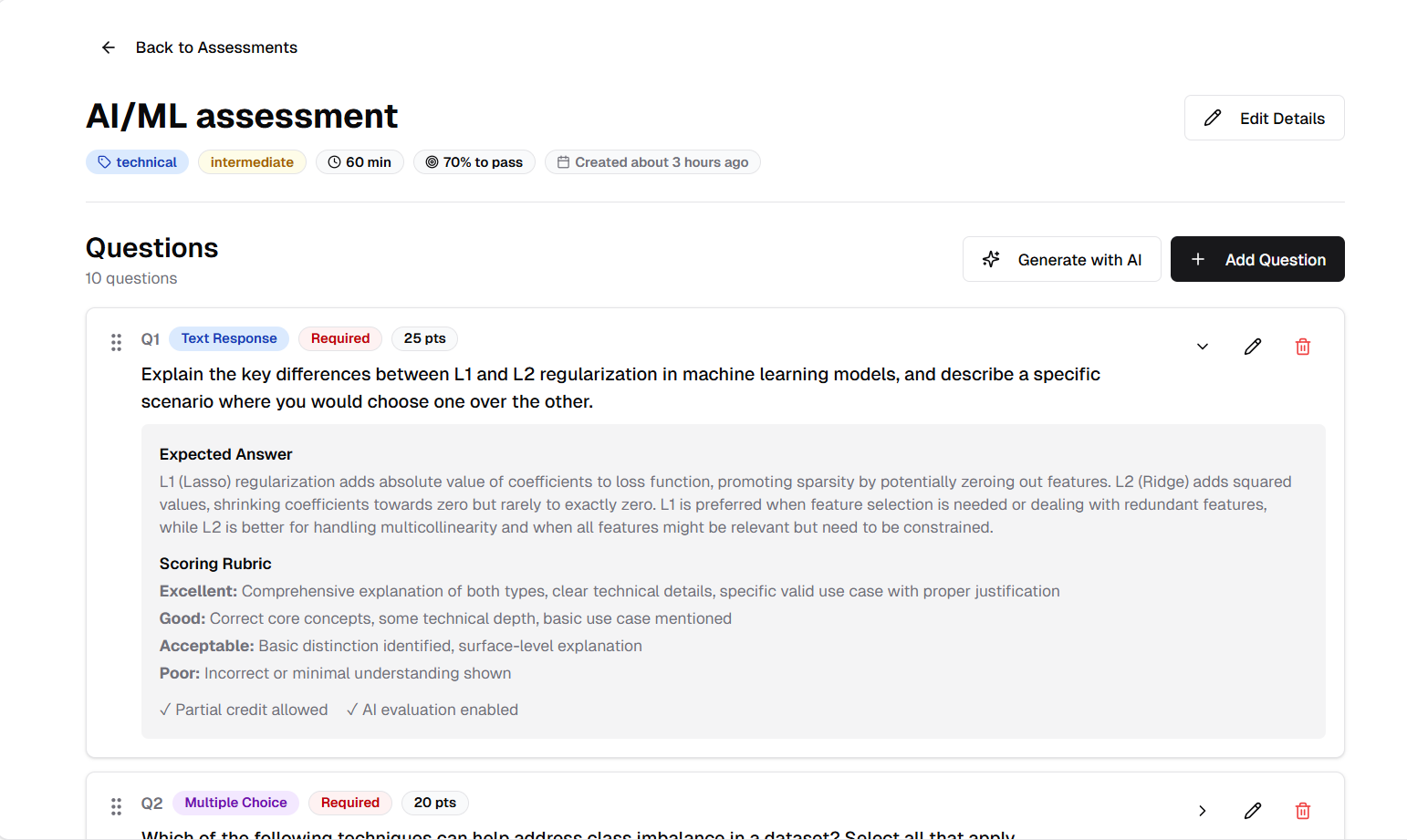
Comprehensive question list with expected answers and management options
🎯 Assessment Configuration in Job Creation
Automated Assessment Assignment
Integrate assessments directly into your job application workflow.
Features:
- Assessment Selection: Choose assessment from your library
- Threshold-Based Triggering:
- -Set resume score threshold
- -Automatically assign assessment to qualified candidates
- Automated Email Notifications:
- -Send assessment link automatically
- -Email includes deadline and instructions
- Workflow Integration: Seamless connection between resume screening and assessment
How It Works:
1. During job creation, enable "Assessment Configuration"
2. Select assessment from dropdown
3. Set resume score threshold (e.g., >70%)
4. Candidates with resume scores above threshold automatically receive:
5. Track assessment status in applicant list
Benefits:
- Automated candidate evaluation pipeline
- Consistent screening process
- Reduces manual work
- Faster candidate progression
- Quality-gated assessment assignment
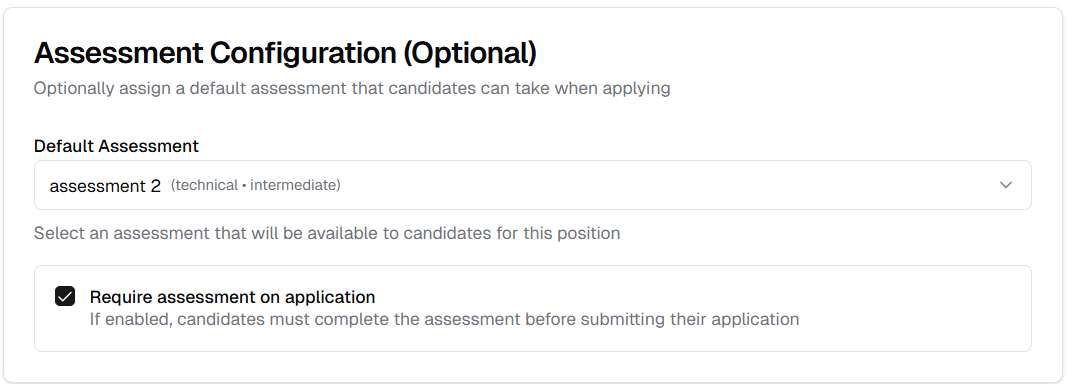
Configure automatic assessment assignment during job creation
⏳ Applicant Assessment Status
Track Assessment Progress
Monitor which applicants are awaiting assessment completion.
Features:
- Status Indicators: Clear "Awaiting Assessment" status
- Assessment Sent: Shows when assessment was sent
- Deadline Tracking: Monitor time remaining
- Action Options: Resend assessment or cancel if needed
Benefits:
- Clear visibility of assessment pipeline
- Track candidate progress
- Identify bottlenecks
- Follow up with pending candidates
- Maintain recruitment momentum

Applicant status showing assessment in progress
🔗 Public Assessment Interface
Candidate Assessment Experience
Candidates receive a public link to complete their assessment in a professional interface.
Features:
- Public Access: No login required, just the unique link
- Professional Layout: Clean, distraction-free assessment interface
- Clear Instructions:
- -Time limit displayed
- -Number of questions shown
- -Submission guidelines
- Start Assessment: Clear call-to-action to begin
- Progress Tracking: Shows question progress during assessment
How It Works:
1. Candidate receives email with assessment link
2. Opens link in browser
3. Views assessment overview (time limit, question count)
4. Clicks "Start Assessment" to begin
5. Timer starts automatically
6. Proceeds through questions
Benefits:
- Professional candidate experience
- No technical barriers
- Clear expectations
- Mobile-friendly interface
- Secure unique links
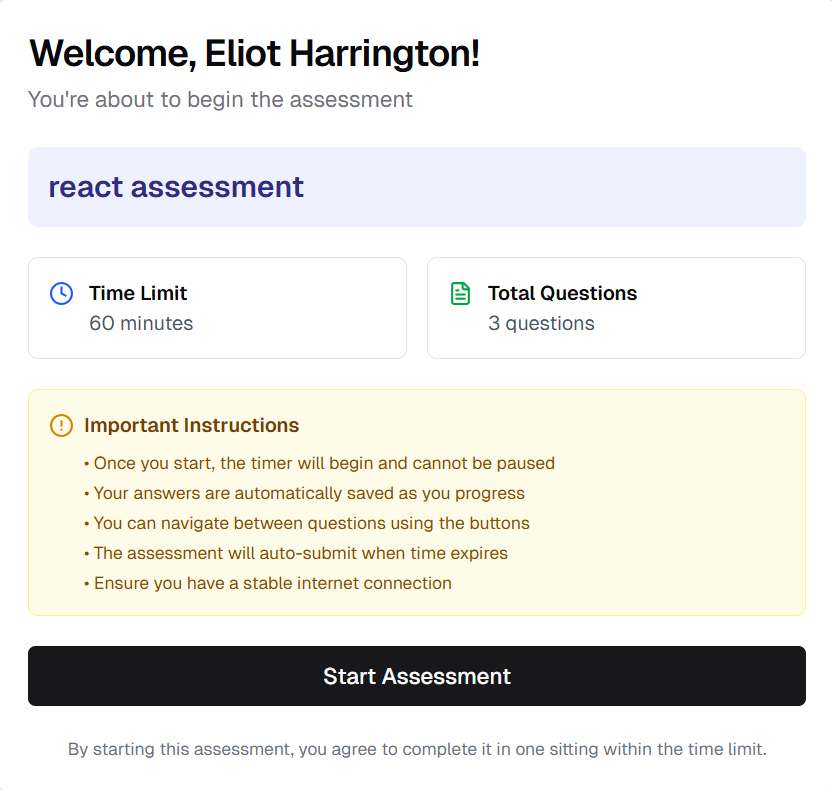
Professional public assessment interface with clear instructions
📊 Assessment Question Types
Multiple Question Formats
Support for various question types to comprehensively evaluate candidates.
Choice-Based Questions:
Features:
- Multiple Options: Display all answer choices clearly
- Radio/Checkbox Selection:
- -Single choice: Radio buttons
- -Multiple choice: Checkboxes
- Clear Marking: Selected answers highlighted
- Option Randomization: Prevent answer pattern memorization
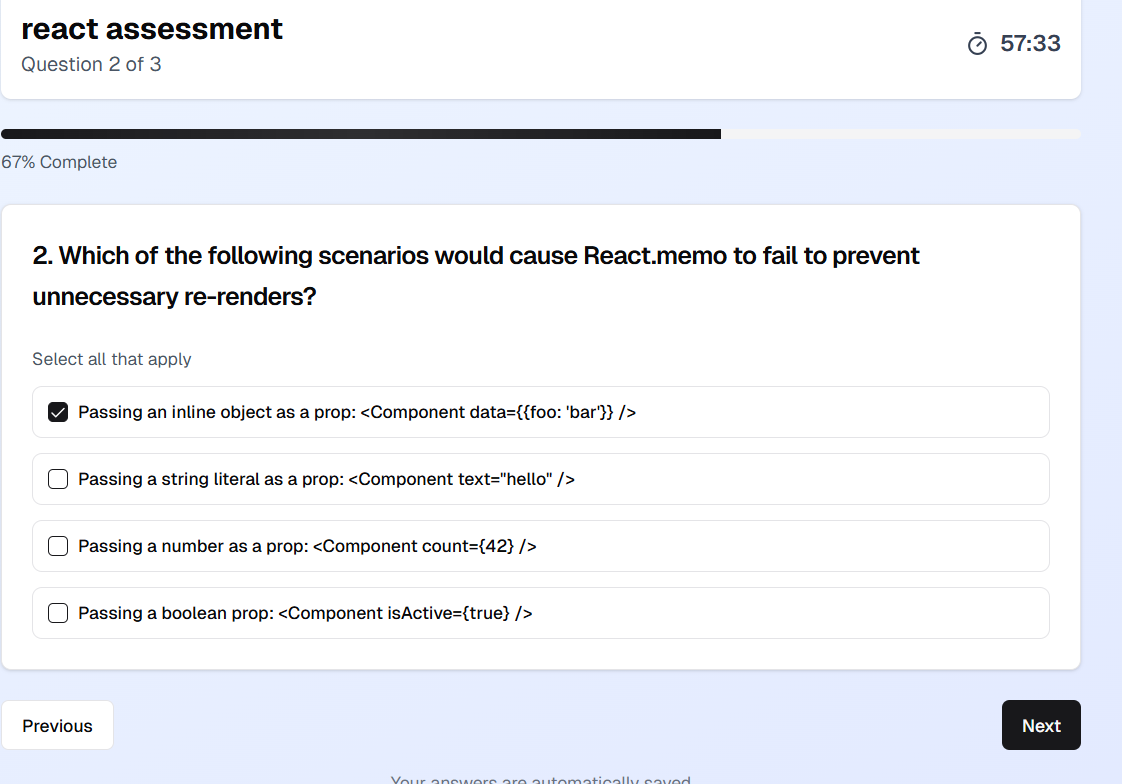
Single and multiple choice questions with clear option display
Text-Based Questions:
Features:
- Open Text Area: Large text input for detailed responses
- Character Counter: Track response length
- Rich Text Support: Maintain formatting in answers
- Auto-Save: Prevent answer loss
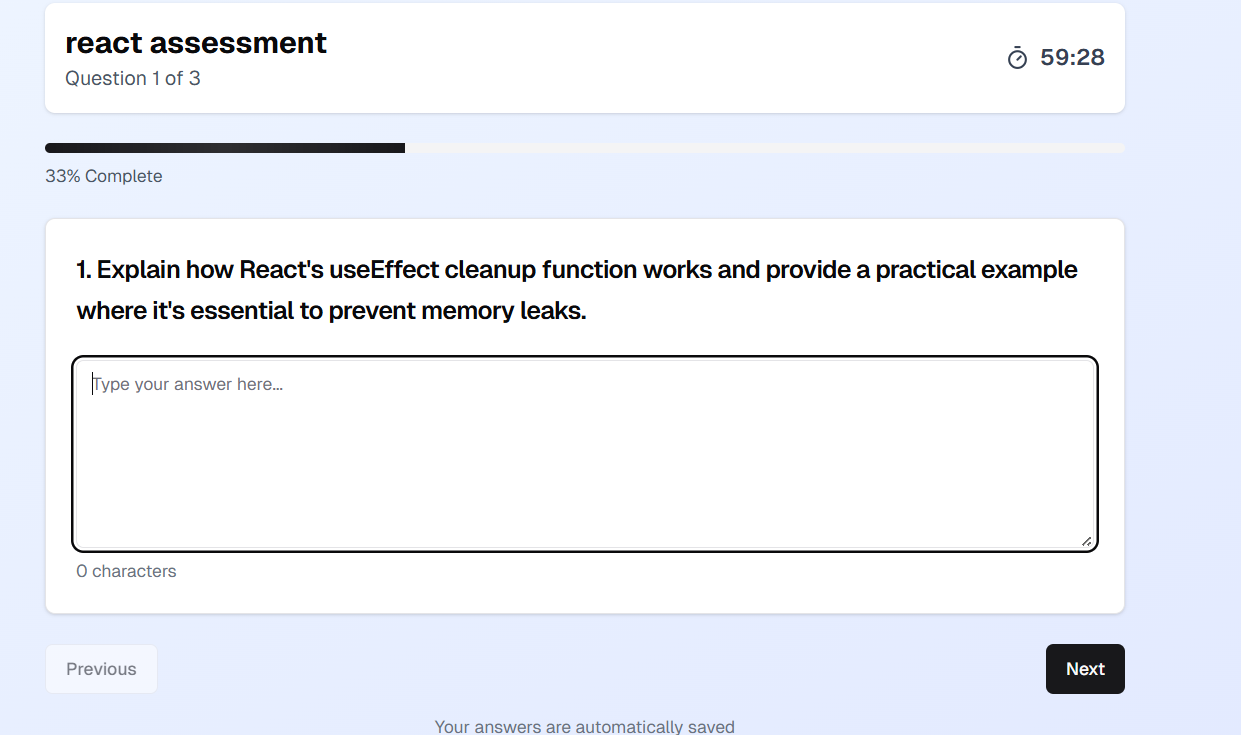
Text-based questions for detailed candidate responses
✅ Assessment Submission
Complete and Submit
Smooth submission process with clear confirmation.
Features:
- Final Review: Option to review answers before submitting
- Submit Button: Appears after last question
- Confirmation Dialog: Prevents accidental submission
- Success Message: Clear confirmation after submission
- Completion Screen: Professional "Assessment Completed" message
How It Works:
1. Candidate answers all questions
2. Reaches final question
3. Clicks "Submit Assessment" button
4. Confirms submission
5. Sees completion confirmation
6. Assessment locked for evaluation
Benefits:
- Clear submission process
- Prevents incomplete submissions
- Professional completion experience
- Immediate confirmation
- Locked answers prevent changes
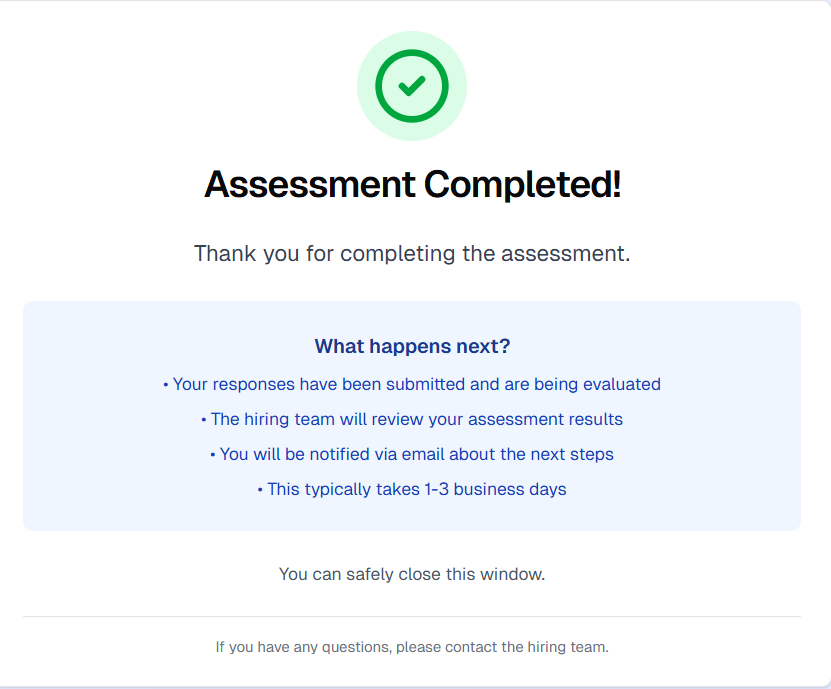
Professional completion screen after assessment submission
🔒 Assessment Already Completed
Prevent Multiple Attempts
System prevents candidates from retaking assessments.
Features:
- One-Time Access: Assessment link works only once
- Completion Detection: System tracks completed assessments
- Clear Message: "Assessment Already Completed" notification
- Locked Status: Cannot modify submitted answers
- Fairness: Ensures equal evaluation conditions
How It Works:
1. Candidate completes and submits assessment
2. Assessment link becomes inactive
3. If candidate tries to access again:
4. Maintains original submission for evaluation
Benefits:
- Fair evaluation process
- Prevents gaming the system
- Protects assessment integrity
- Clear candidate communication
- Maintains equal conditions
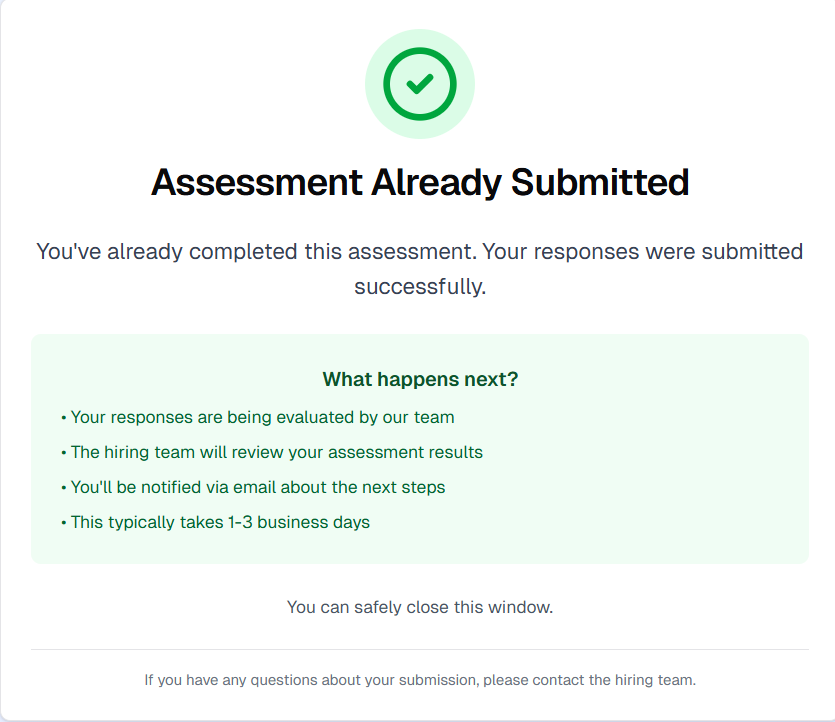
Message shown when candidate attempts to retake completed assessment
🤖 AI-Powered Assessment Review
Automatic Evaluation and Scoring
AI automatically evaluates assessment responses and provides detailed scoring.
Features:
- Automatic Grading:
- -Choice questions: Instant correct/incorrect evaluation
- -Text questions: AI evaluates against expected answers
- Detailed Scoring:
- -Points earned per question
- -Total score calculation
- -Percentage score
- Pass/Fail Determination:
- -Compares score to pass threshold
- -Automatic status update
- Answer Review:
- -Shows candidate's answers
- -Displays expected answers
- -Highlights correct/incorrect responses
- Next Steps Automation:
- -Score > threshold: Status set to "Passed", interview link generated
- -Score < threshold: Status set to "Failed"
How It Works:
1. Candidate submits assessment
2. AI evaluates all responses automatically:
3. System calculates total score
4. Compares to pass threshold
5. Updates candidate status
6. If passed, generates interview link
7. Recruiter views detailed results
Benefits:
- Instant evaluation
- Consistent scoring
- Reduced recruiter workload
- Objective text answer evaluation
- Automated workflow progression
- Detailed performance insights
- Fair and unbiased assessment
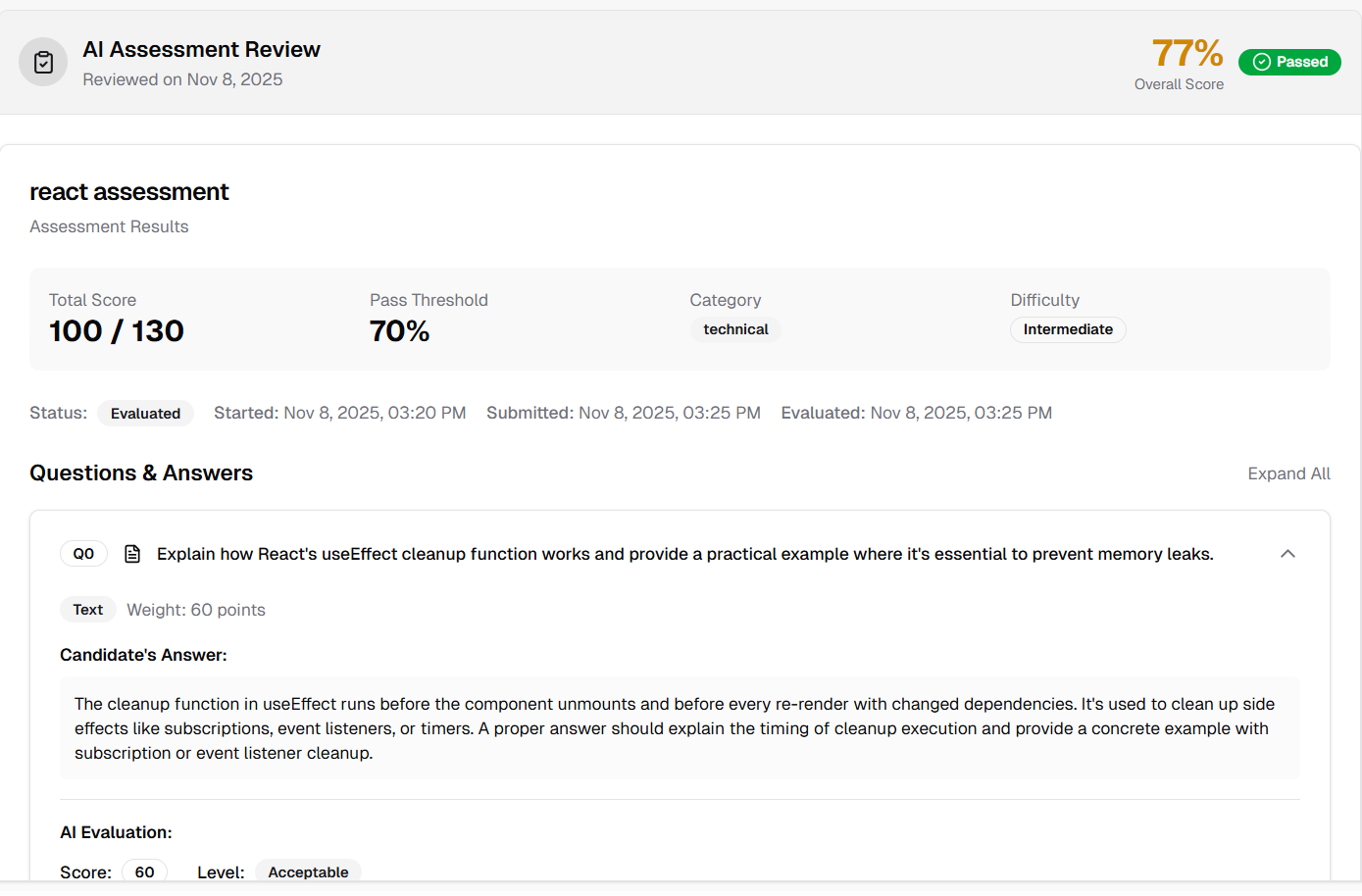
Detailed AI-powered assessment results with scoring and next steps
👥 Manual Assessment Assignment
Assign Assessments to Selected Applicants
Manually assign assessments to specific candidates outside of automated workflows.
Features:
- Multi-Select: Choose multiple applicants at once
- Assessment Selection: Pick from your assessment library
- Batch Assignment: Assign to all selected candidates simultaneously
- Email Notification: Automated email with assessment link
- Flexible Assignment: Works independent of resume scores
How It Works:
1. Navigate to job applicants list
2. Select checkboxes for target applicants
3. Click "Assign Assessment" button
4. Choose assessment from dropdown
5. Confirm assignment
6. Selected candidates receive:
Benefits:
- Manual control over assessment assignment
- Reassess specific candidates
- Assign different assessments
- Override automated workflows
- Flexible evaluation process
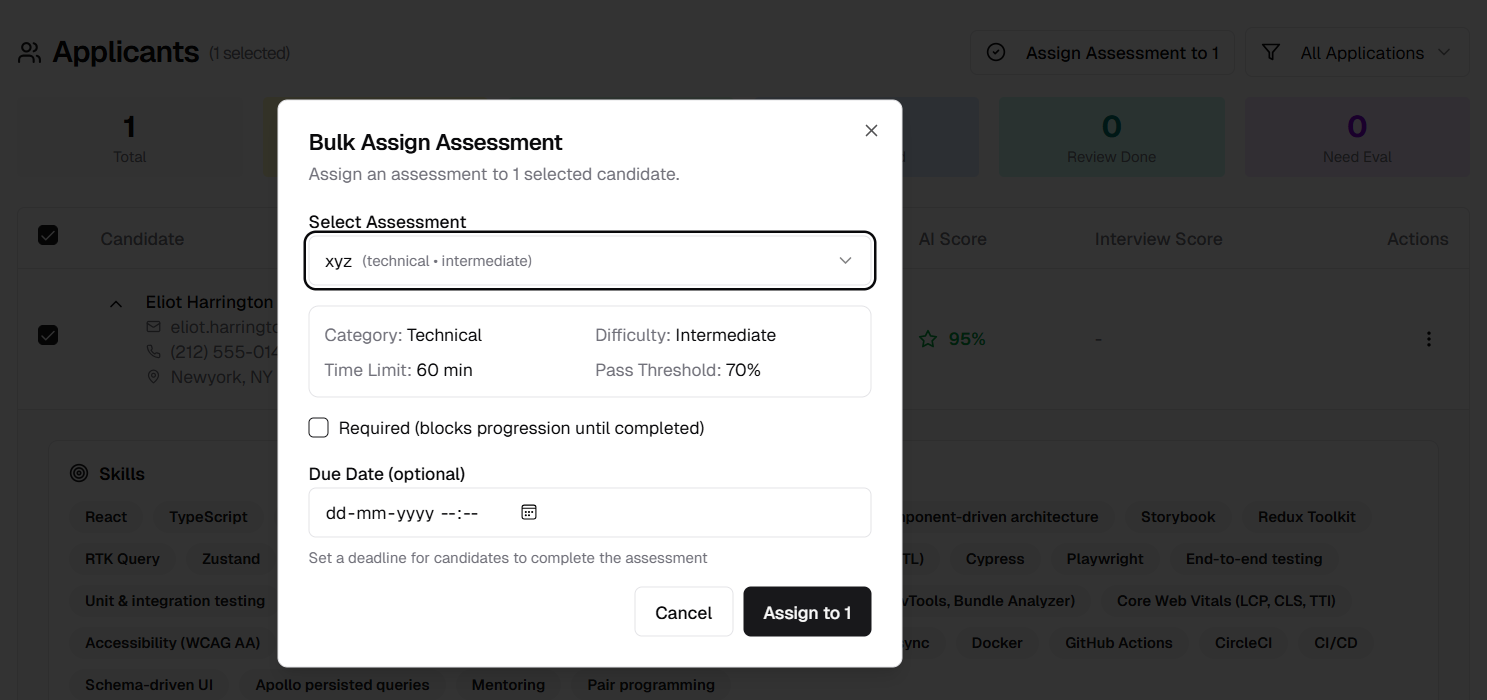
Select multiple applicants and assign assessments in bulk
📈 Assessment Results in Candidate Profile
Track Assessment Performance
View assessment scores and results directly in candidate profiles.
Features:
- Score Display: Shows assessment percentage score
- Status Indicator: Passed/Failed/Pending status
- Assessment Details: Assessment name, Completion date, Time taken
- Performance Overview: Quick view of candidate's assessment history
- Linked Results: Click to view detailed assessment breakdown
Benefits:
- Complete candidate evaluation view
- Track assessment history
- Quick performance reference
- Informed hiring decisions
- Centralized candidate data
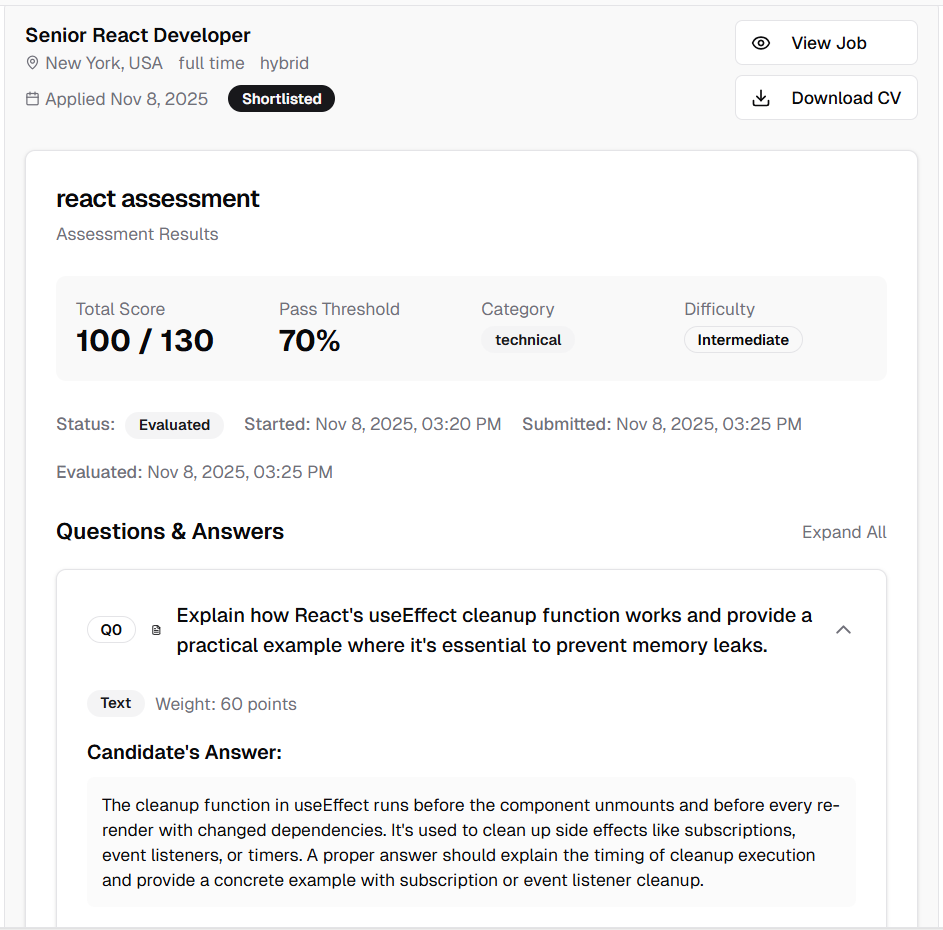
Assessment results displayed in candidate profile
🎯 Enhanced Job Applicants Actions
Quick Action Menu
Streamlined actions for managing applicants with a convenient 3-dot menu.
Features:
- 3-Dot Menu: Clean, organized action options
- Available Actions:
- -View Resume: Open and review candidate's resume
- -Copy Interview Link: (Shortlisted candidates) Quick copy of interview URL
- -View Offer Letter: (Offered candidates) Access generated offer letter
- Status-Based Actions: Actions appear based on candidate status
- One-Click Access: Faster workflow actions
How It Works:
1. Navigate to job applicants list
2. Click 3-dot menu icon for any applicant
3. Available actions display based on status:
4. Click action to execute
Benefits:
- Cleaner interface
- Faster access to common actions
- Context-aware actions
- Improved user experience
- Reduced clicks for common tasks
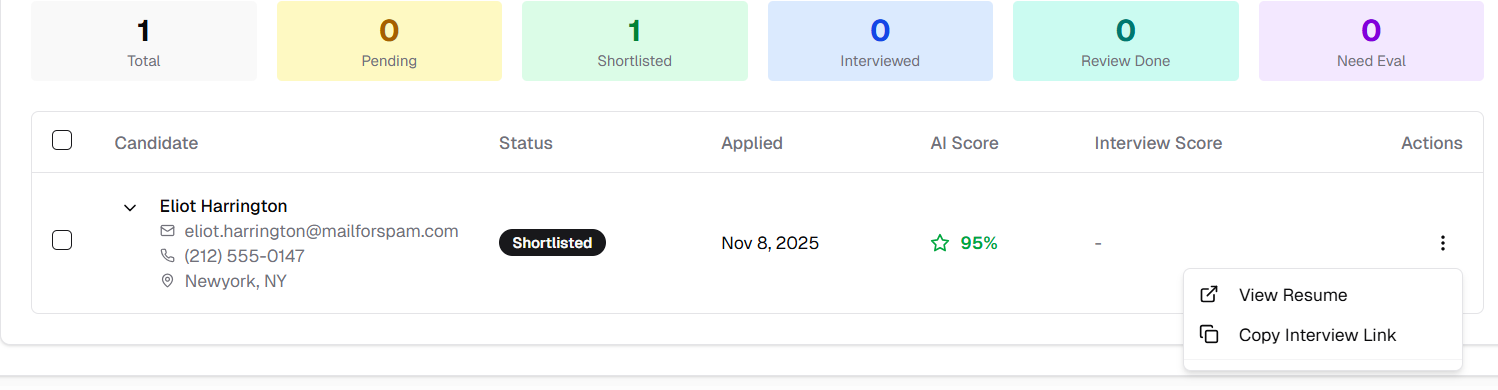
3-dot action menu with status-based options
Released on November 08, 2025
View all releases