Release Notes - Beta v0.3
🎯 Highlights
We've made interviews smoother and easier to manage. This update brings better video meeting tools, smarter AI behavior, and a simpler way to handle offer letters.
What's Better
- AI now leaves meetings automatically when interviews are done
- Google Meet and Teams work fully with your interviews
- Offer letters now come as PDF attachments in emails
- You can download copies of offer letters you've sent
- Interview settings are clearer and easier to understand
✨ What's New
🤖 Enhanced AI Interview Intelligence
Smart Meeting Management
- AI now automatically exits meetings after completion
- Professional closing with candidate appreciation message
- Clear end-of-interview notification for candidates
- Improved meeting etiquette and candidate experience
- Prevents unnecessary AI presence after interview conclusion
📹 Complete Video Interview Integration
Full-Flow Meeting Support
The platform now supports end-to-end automated interviews across all meeting types with seamless integration.
Google Meet Integration
- Fully operational Google Meet interview workflow
- Requires active Google Meet connection in Settings
- Navigate to: Settings → Connections → Connect Google Meet
- AI joins meetings automatically
- Complete interview with automated evaluation
Microsoft Teams Integration
- Fully operational Teams interview workflow
- Requires active Microsoft Teams connection in Settings
- Navigate to: Settings → Connections → Connect Microsoft Teams
- Seamless Teams meeting automation
- Professional interview experience on Teams platform
Smart Fallback System
- Platform intelligently handles missing integrations
- Automatically sends text interview link if:
- Google Meet selected but no Google Meet connection
- Teams selected but no Teams connection
- Text interview always available as reliable option
- Ensures no candidate is left without interview method
Meeting Link Type Options:
- Microsoft Teams - Requires Teams integration
- Google Meet - Requires Google Meet integration
- Text - No integration required, always available
Automated Post-Interview Workflow
- AI evaluates candidates immediately after meeting ends
- Comprehensive scoring across all competencies
- Detailed performance analysis and recommendations
- Consistent evaluation across Google Meet, Teams, and Text interviews
📧 Enhanced Offer Letter Management
PDF Attachment Delivery
Offer letters are now delivered as professional PDF attachments for candidate convenience.
Improved Offer Letter Email
- Professional PDF attachment included in offer email
- Candidates can easily sign and return the document
- Enhanced document formatting and branding
- Secure PDF generation
💾 Secure Offer Letter Download
Download Functionality
Employers can now securely download sent offer letters for record-keeping and compliance.
Key Features:
- Download button appears after offer is successfully sent
- Located in the same position as "Send Offer" button
- Secure download of original PDF
- Maintains document integrity
- Supports compliance and record-keeping requirements
🎨 Interview Settings UI Improvements
Enhanced User Interface
The interview settings section has been redesigned for better clarity and usability.
Improvements:
- Clearer descriptions for each setting option
- Improved visual hierarchy and organization
- Better guidance for integration requirements
- Enhanced tooltips and help text
🐛 Bug Fixes & Improvements
Interview System
- Fixed AI not leaving meetings after completion
- Resolved integration fallback logic issues
- Improved meeting link generation reliability
- Enhanced error handling for missing integrations
Offer Letter System
- Fixed offer letter email format issues
- Improved PDF generation quality
- Enhanced download security
- Resolved offer status tracking bugs
User Interface
- Improved interview settings clarity
- Enhanced button state management
- Better visual feedback for integration status
- Improved responsive design on settings pages
Performance
- Optimized PDF generation process
- Improved meeting integration response times
- Enhanced database query efficiency for offer letters
- Reduced page load times in job details section
📚 How to Use: Video Interviews & Offer Letters
Setting up video interviews and managing offer letters in Taqat AI ATS is simple and streamlined. Follow these comprehensive guides to maximize your recruitment workflow.
📹 Video Interview Setup
Prerequisites
Before you can use video interviews, you need to connect your video conferencing platform:
1. Go to Settings → Connections
2. Connect your preferred platform:
- Google Meet: Click "Connect Google Meet" and authorize access to your Google account
- Microsoft Teams: Click "Connect Microsoft Teams" and authorize access to your Microsoft account
3. Verify connection status: Ensure the connection shows as "Active"
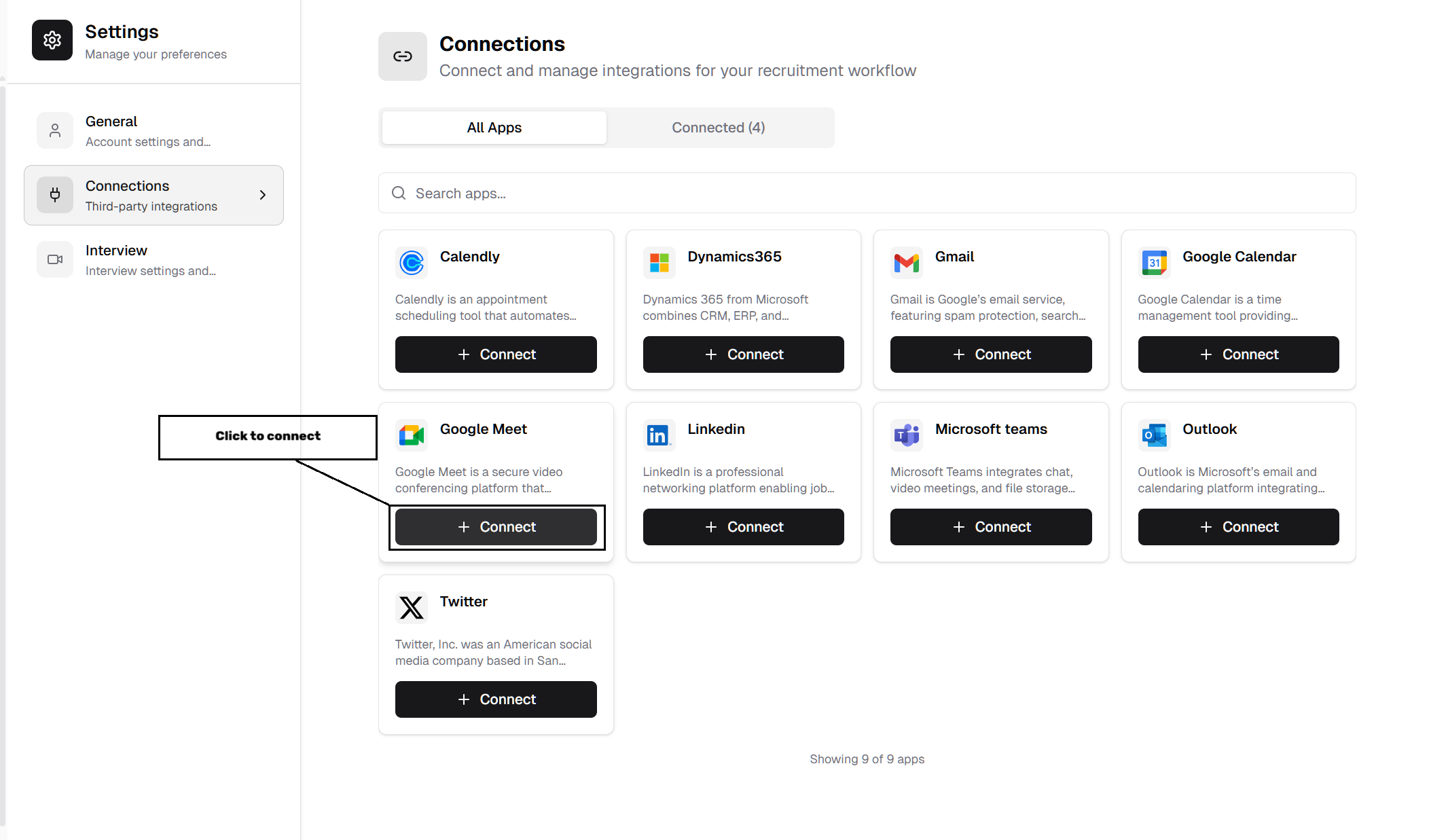
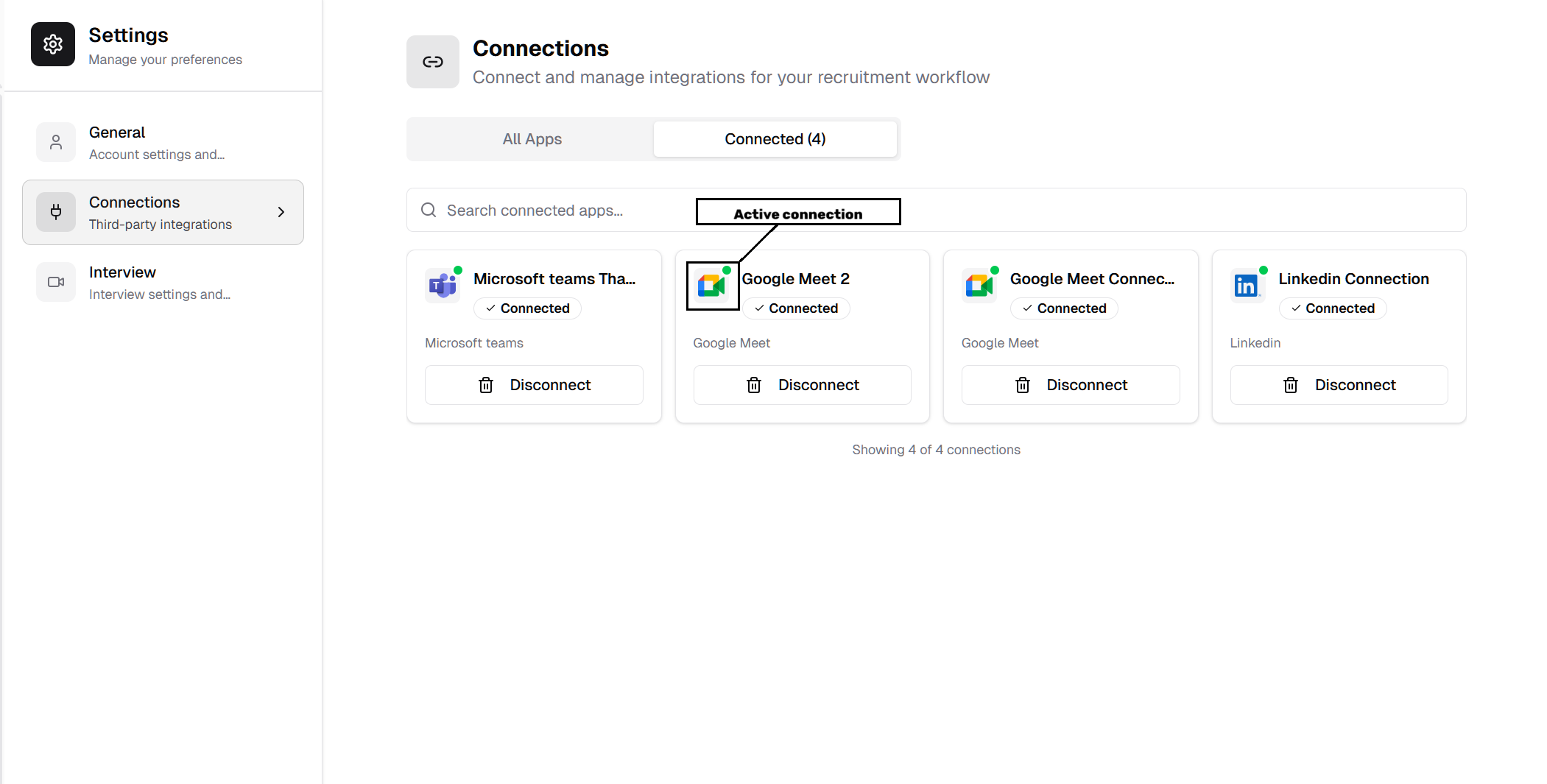
Connect Google Meet or Microsoft Teams in Settings → Connections
Step 1: Configure Interview Settings
1. Navigate to Job Details page for your job posting
2. Go to Interview Settings section
3. Select your preferred Meeting Link Type:
- Text: Text-based interview (no integration required)
- Google Meet: Automated Google Meet links (requires Google Meet connection)
- Microsoft Teams: Automated Teams meeting links (requires Teams connection)
4. Configure additional interview preferences
5. Save your settings
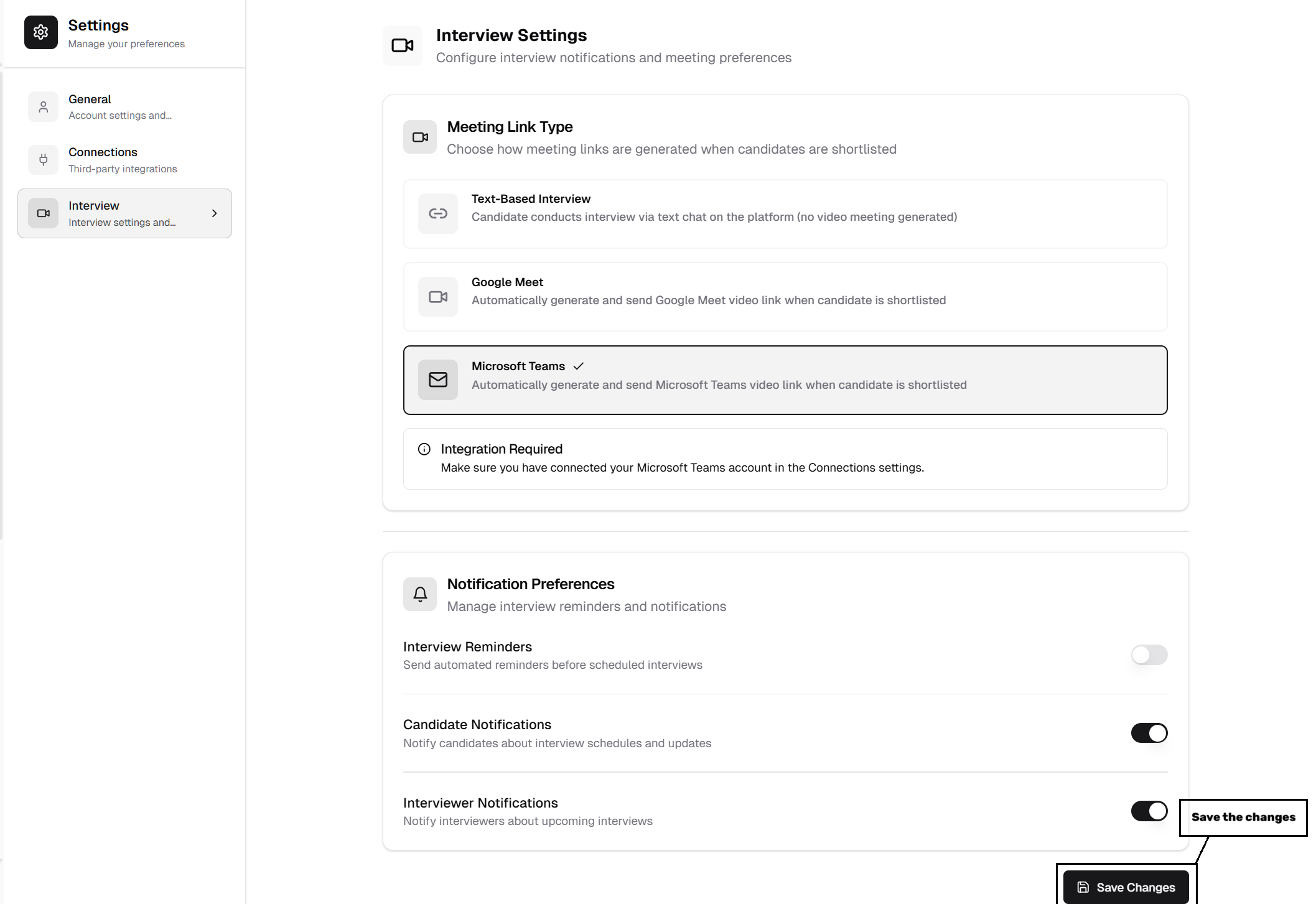
Select your preferred Meeting Link Type in Interview Settings and make sure you save it
Important Notes:
- If you select Google Meet or Teams without connecting the platform, the system will automatically fallback to Text interview
- Text interview is always available as a reliable fallback option
- You can change meeting type at any time
Step 2: Candidate Application & Interview Flow
When a candidate applies for a job, the system automatically:
1. Receives the application and processes the candidate's profile
2. Evaluates the candidate using AI-powered screening
3. For selected candidates:
- Automatically generates interview link based on your settings (Google Meet, Teams, or Text)
- Sends an email invitation to the candidate with the meeting link or interview instructions
- For Text: Sends secure text interview link
4. AI conducts the interview:
- For Google Meet/Teams: AI joins the meeting and conducts the interview
- For Text: Candidate completes interview through text-based chat interface
- AI asks predefined interview questions
- Records candidate responses
Step 3: AI Auto-Exit Feature (New in v0.3)
After completing the interview, the AI now intelligently manages the meeting conclusion:
1. Interview Completion: AI finishes asking all questions
2. Professional Closing: AI thanks the candidate for their time
3. Clear Notification: AI informs candidate they can leave the meeting
4. Automatic Exit: AI automatically exits the meeting
5. No Lingering: Prevents unnecessary AI presence after interview
Benefits:
- Improved candidate experience with clear meeting closure
- Professional interview etiquette
- Efficient resource management
- Better meeting hygiene
Step 4: Post-Interview Evaluation
After the interview concludes, the system automatically:
1. AI analyzes the interview - Comprehensive evaluation of candidate responses
2. Generates performance scores - Data-driven scoring across all competencies
3. Creates detailed report - Actionable insights and hire/no-hire recommendations
4. Updates candidate status - Automatically reflects interview results in the system
Works across all interview types:
- Google Meet interviews ✓
- Microsoft Teams interviews ✓
- Text interviews ✓
📧 Sending Offer Letters
How to Send Offer Letters with PDF Attachments (New in v0.3)
1. Navigate to Job Details page
2. Go to Applicants section
3. Locate the qualified candidate you want to send an offer to
4. Click "Send Offer" button next to the candidate's name
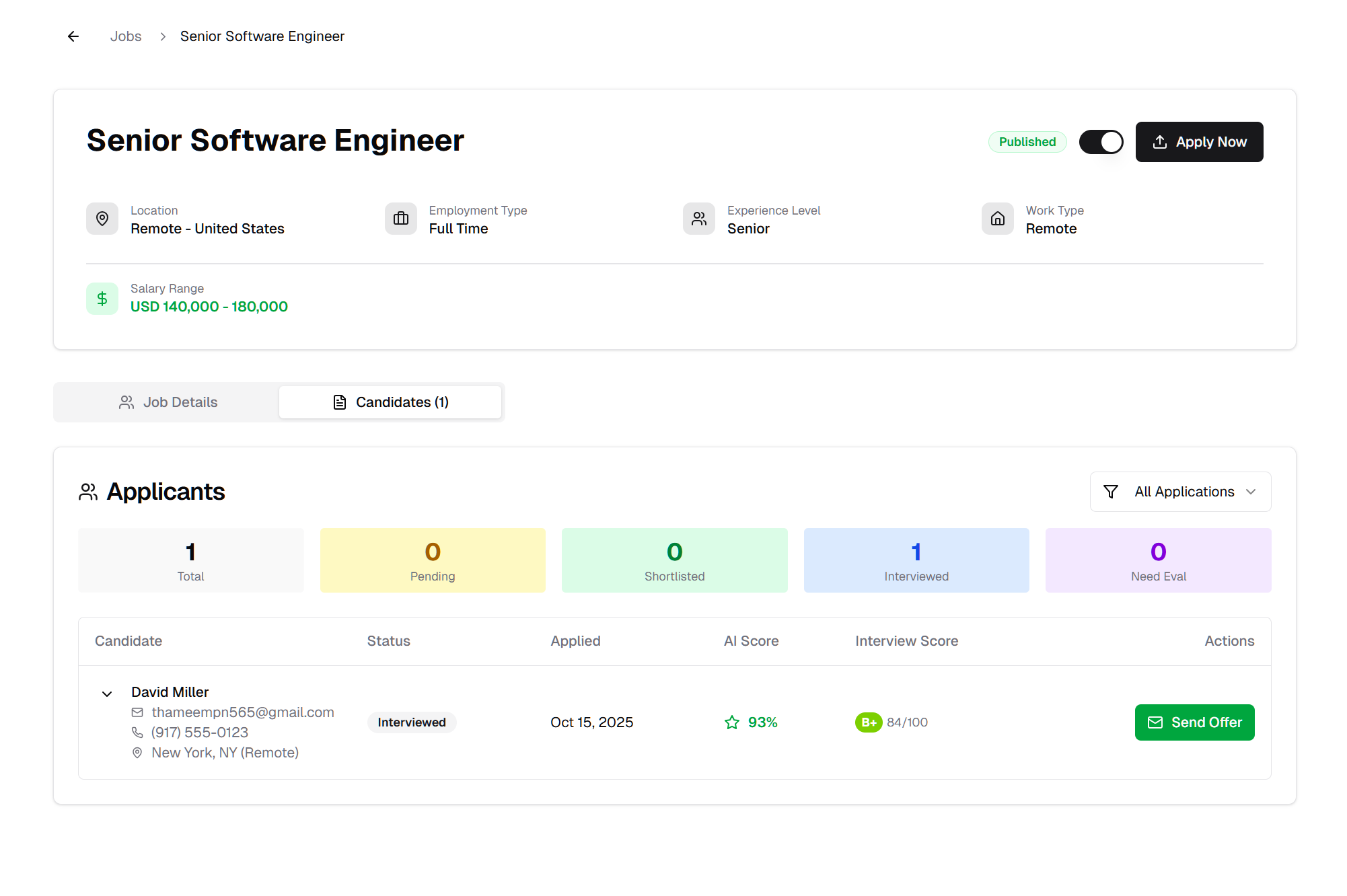
Click "Send Offer" button in the Applicants section
5. System automatically:
- Generates professional offer letter PDF
- Creates personalized email with offer details
- Attaches PDF to email
- Sends email to candidate
- Updates offer status in system
PDF Attachment Benefits:
- Professional document formatting
- Easy for candidates to sign and return
- Maintains consistent branding
- Secure document generation
- Email-friendly format
💾 Downloading Offer Letters (New in v0.3)
How to Download Sent Offer Letters
After successfully sending an offer letter, you can download a copy for your records:
1. Navigate to Job Details page
2. Go to Applicants section
3. Locate the candidate who received the offer
4. Notice the button change: "Send Offer" button is now "Download Offer Letter"
5. Click "Download Offer Letter" button
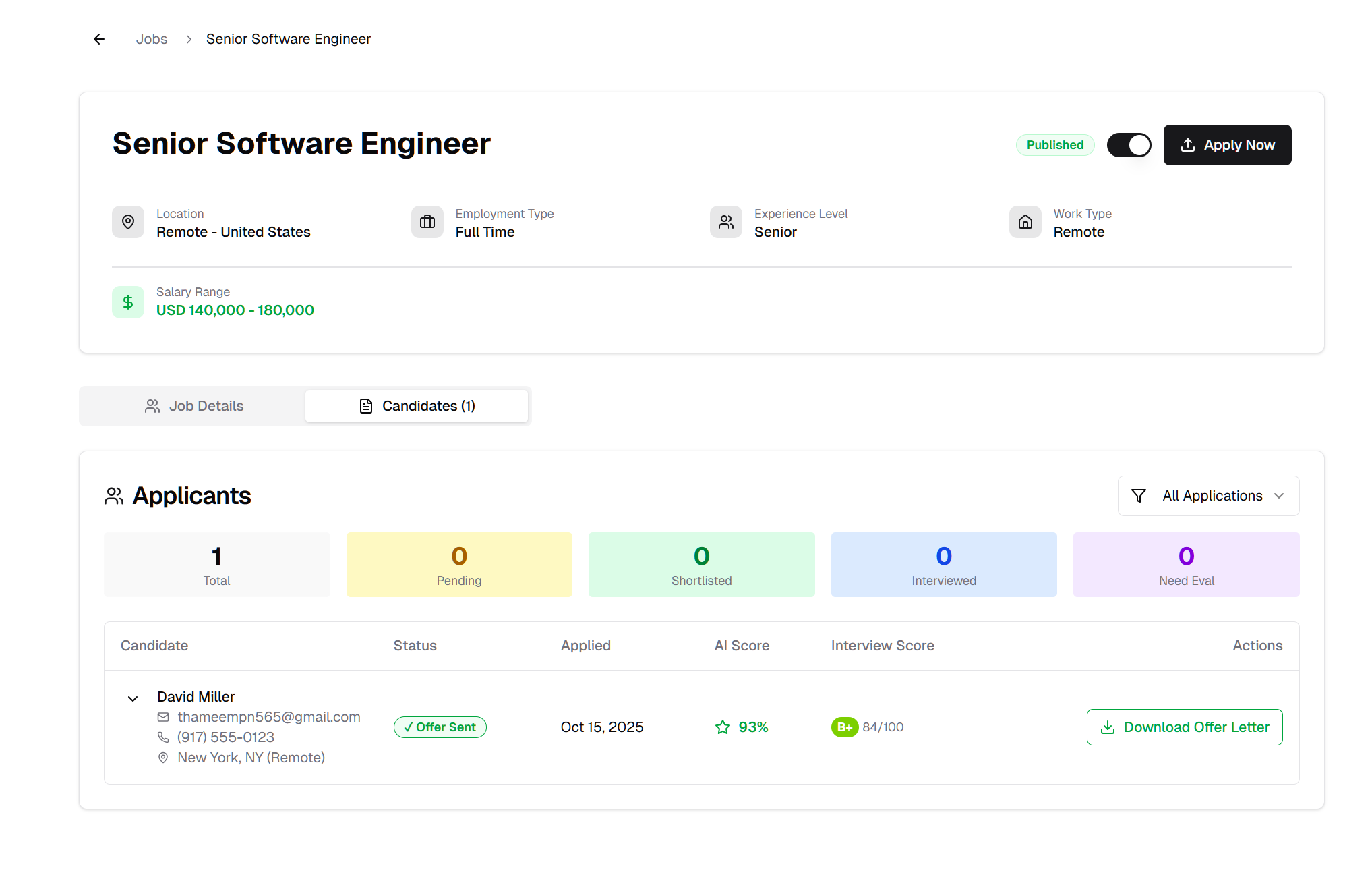
Download Offer Letter button appears after sending the offer
6. PDF downloads to your device
7. Save for your records
Important Notes
- Download button only appears after offer is sent
- Downloads the exact PDF sent to candidate
- Maintains document integrity
- No expiration on download availability
Released on October 16, 2025
View all releases